


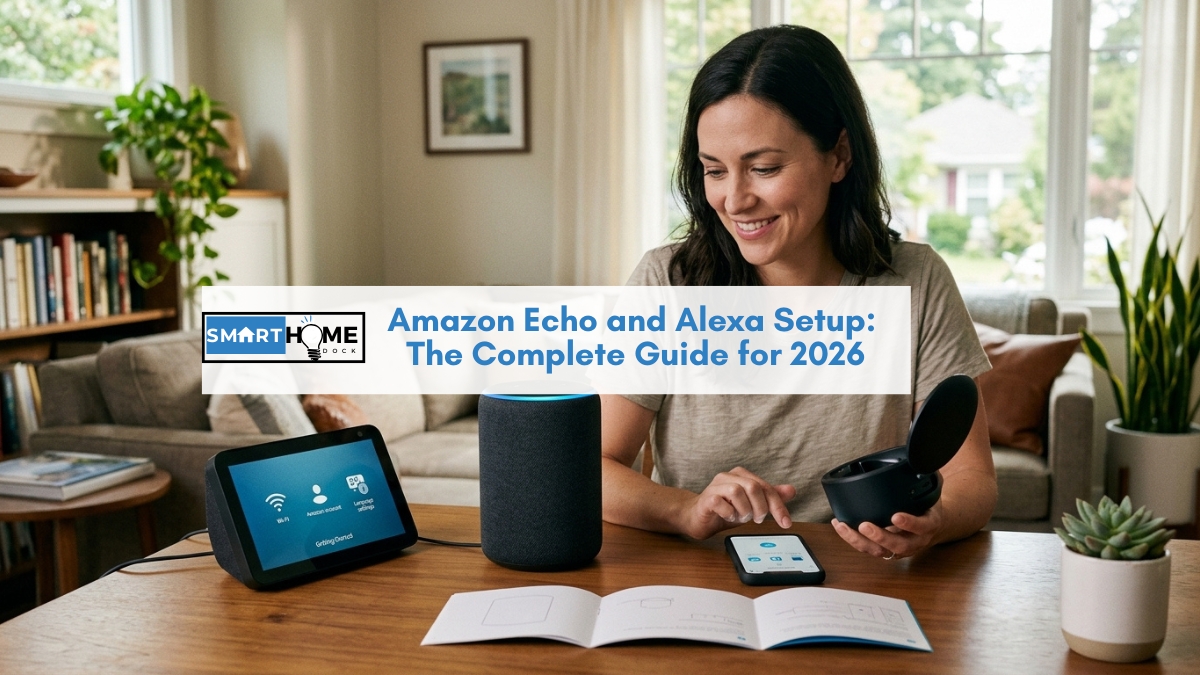
You’ve plugged in the Echo. The light ring has done something orange.
You’ve downloaded the app. And now you’re staring at a home screen wondering what “Alexa” is actually supposed to do for you beyond playing Spotify.
Notably, the setup itself takes under ten minutes.
What takes longer, and what nobody explains clearly, is the sequence of decisions after that: which devices to add, how to group them, what a Routine actually is, and why Alexa+ changes everything if you’re an Amazon Prime member.
This guide covers the complete Alexa setup journey from first plug-in to first Routine, every section independently accessible so you can jump to what you need now.
Quick Answer: Alexa Setup in 60 Seconds
New Echo device: plug in → orange light spins → download Alexa app → tap Devices → tap + → Add Device → follow prompts → connected in under 10 minutes.
Can’t connect to Wi-Fi: the most common fix is switching your phone to 2.4GHz Wi-Fi before setup, or disabling your VPN. Full fix list is in the Wi-Fi section below.
Alexa+: if you’re an Amazon Prime member, Alexa+ is already included at no extra cost. It’s the AI-upgraded Alexa that understands natural language commands and can create Routines by voice. Check your Amazon account — you may already have it.
Most important next step after setup: create your first Routine. “Alexa, goodnight” that turns off every light and locks every door is the feature that changes how you use Alexa daily. Setup takes 3 minutes. See the Routines section.
Alexa+ in 2026: Check This Before You Do Anything Else
Importantly, Amazon launched Alexa+ in February 2026, a generative AI upgrade that changes how Alexa responds to commands.
Instead of exact phrase matching (“Alexa, turn on the living room lights”), Alexa+ understands natural language (“Alexa, it’s getting dark in here”).
Instead of building Routines step by step in the app, Alexa+ creates them by voice: “Alexa, whenever I say goodnight, turn off all the lights and set the thermostat to 18 degrees.”
If you’re an Amazon Prime member, Alexa+ is already enabled on your Echo devices at no extra cost. It’s included as part of Prime membership alongside fast delivery, Prime Video, and Amazon Music.
You don’t need to activate it separately. Open your Alexa app and look for the Alexa+ indicator on your device page if you’re a Prime member, it should already show as active.
However, non-Prime members can access Alexa+ for $19.99/month as a standalone subscription.
However, Amazon Prime at $14.99/month includes Alexa+ alongside all other Prime benefits — making the standalone plan rarely the right financial choice.
For a full breakdown of Alexa+ pricing and features, see our complete Amazon Echo guide.
⚠️ What Alexa+ changes about this guide
Specifically, several steps, particularly Routine creation, are faster and more flexible with Alexa+. Where Alexa+ offers a shortcut over the standard app-based method, it’s noted inline. If you’re not yet an Alexa+ user, all standard steps still work exactly as described.
How to Set Up Alexa: First Echo Setup, Step by Step
This Alexa setup section covers every Echo model: Echo Dot, Echo Pop, Echo (4th gen), Echo Studio, Echo Show, and Echo Hub. The setup process is identical across all of them.
The only difference: Echo Show devices have an on-screen setup option alongside the app method.
What you need before starting
- The Echo device and its power cable
- A smartphone or tablet (iOS or Android)
- The Amazon Alexa app — free on App Store and Google Play
- An Amazon account — free to create in the app
- Your home Wi-Fi name and password (2.4GHz network preferred for setup)
Step-by-step setup
- Plug in your Echo device. The power cable connects to the back or bottom depending on the model. The light ring spins orange after about 30 seconds — this means the device is in setup mode and ready to connect.
- Download and open the Alexa app. Search “Amazon Alexa” in the App Store or Google Play. Sign in with your Amazon account, or create one for free if you don’t have one.
- Tap the Devices tab (bottom navigation bar), then the + icon in the top right corner, then Add Device.
- Select Amazon Echo from the device list. Then select Echo, Echo Dot, Echo Pop and more. The app asks whether the light ring is orange; confirm yes.
- Furthermore, the app connects to the Echo via Bluetooth to transfer your Wi-Fi details. Your phone’s Bluetooth must be enabled. A list of available Wi-Fi networks appears; select your home network and enter the password.
- Wait 60–90 seconds for the Echo to connect. The light ring turns blue during connection and then turns off when setup is complete. Alexa announces “Your Echo is ready.”
- Name your device and assign it to a room. The app prompts you to name the device (e.g., “Kitchen Echo”, “Bedroom Dot”) and place it in a room. Both steps matter for smart home control: “Alexa, turn off the kitchen lights” works only if the Echo is assigned to the kitchen room.
- Set up a Voice Profile (optional but recommended). Voice Profiles let Alexa identify which household member is speaking and personalise responses to your calendar, your music, your shopping list. Navigate to More → Settings → Your Profile and Voice in the Alexa app to create yours.
Notably, Echo Show devices have an additional option: on-screen setup without the app.
When the Show powers on, follow the on-screen prompts to enter Wi-Fi details directly via the touchscreen. The app method and the on-screen method reach the same result.
Amazon Echo Light Ring Colours: What Every Colour Means
The Echo’s light ring is its primary communication tool.
Understanding each colour eliminates most “why is my Echo doing this?” confusion immediately.
| Light ring behaviour | What it means | What to do |
|---|---|---|
| Orange spinning | Setup mode — waiting to connect | Open Alexa app → Add Device |
| Orange pulsing | Processing a request or connecting to Wi-Fi | Wait — it’s working |
| Blue spinning then cyan | Starting up / booting | Wait for Alexa to finish starting |
| Blue with cyan pointing at you | Alexa is listening to your command | Speak your command now |
| Pulsing violet | Wi-Fi setup error during configuration | Check Wi-Fi details and retry setup |
| Solid red ring | Microphone is muted — Alexa cannot hear you | Press the microphone button to unmute |
| Pulsing yellow | You have a notification or message | Say “Alexa, what are my notifications?” |
| White spinning or pulsing | Volume being adjusted | Normal — no action needed |
| Purple | Do Not Disturb mode is on | Say “Alexa, turn off Do Not Disturb” or check app settings |
| Green spinning | Incoming Drop In call or active call | Say “Alexa, answer” or “Alexa, ignore” |
| No light | Idle and ready — normal state | Say “Alexa” to wake and give a command |
Alexa Not Connecting to Wi-Fi — Fix Every Problem
Notably, Wi-Fi connection failures are the most common Alexa setup problem. The cause is almost always one of the following. Work through them in order.
Fix 1: Switch your phone to the 2.4GHz network before setup
The most common setup failure happens because your phone is on the 5GHz band and the Echo is trying to connect to 2.4GHz.
During setup, the Alexa app transfers your Wi-Fi credentials from your phone to the Echo.
If your phone is on 5GHz and your Echo is looking for 2.4GHz, the transfer fails. Go to your phone’s Wi-Fi settings, find your router’s 2.4GHz network (usually the same name as your 5GHz but without an “5G” suffix), and connect to it before starting Echo setup.
Fix 2: Disable your VPN
An active VPN routes traffic through external servers. Consequently, it takes them outside your local network.
Consequently, the Alexa app cannot find the Echo on your local network during setup. Disable the VPN, complete setup, then re-enable it.
The Echo itself doesn’t need the VPN disabled after initial setup; only the setup process requires your phone and Echo to be on the same local network.
Fix 3: Check your Wi-Fi password for special characters
Wi-Fi passwords containing certain special characters — particularly &, #, and ' — occasionally fail to transfer correctly through the Alexa app’s setup interface.
If your password contains these characters, try temporarily changing your Wi-Fi password to one using only letters, numbers, and hyphens for setup, then changing it back afterward.
Alternatively, try setting up via the Alexa app’s manual Wi-Fi entry rather than the automatic transfer method.
Fix 4: Restart the Echo and the router
First, remove the Echo’s power cable and wait 30 seconds. Then plug it back in. Additionally, restart your router by switching it off and on.
After both have fully restarted, the router typically takes 60 seconds to reconnect to your ISP; attempt setup again.
Furthermore, many intermittent connection failures resolve with a full restart of both devices.
Fix 5: Check you’re not on a captive portal or guest network
Hotel Wi-Fi, university networks, and some public-building networks require a browser login before full internet access is granted.
Echo devices cannot complete this login step. If you’re trying to set up an Echo on any network with a browser-based login requirement, it won’t work; the Echo needs a standard password-protected home Wi-Fi connection.
Fix 6: Factory reset the Echo and start again
If all other fixes fail, factory reset the Echo and attempt a clean setup. For most Echo devices: hold the Mute and Volume Down buttons simultaneously for 20 seconds until the light ring turns orange.
For Echo Show: swipe down, tap Settings, tap Device Options, tap Reset to Factory Defaults. After the reset, the orange spinning ring reappears and setup can begin fresh.
For further Alexa setup Wi-Fi troubleshooting specific to TP-Link and router configuration, see our TP-Link router login guide.
How to Add Smart Home Devices to Alexa
Adding smart home devices to Alexa is a key part of any Alexa setup. Lights, plugs, locks, thermostats, cameras all follow the same process for any Matter-certified device and a similar process for brand-specific skills.
Method 1: Matter devices (QR code — fastest)
Matter-certified devices pair with Alexa via QR code scan. In the Alexa app, tap Devices → + → Add Device → Other. Select “Matter Device.”
Point your phone camera at the QR code on the device packaging. The app finds the device automatically and adds it to Alexa in under two minutes, no skill enabling, no account linking required.
Method 2: Brand-specific skill (most common)
- Open the Alexa app. Tap More (bottom right) → Skills & Games.
- Search for the brand — Philips Hue, Kasa, Ring, Nest, Ecobee, or the device brand.
- Tap the skill and tap Enable to Use. You’ll be asked to log into the brand’s account to link it to Alexa.
- After linking, tap Discover Devices. Alexa scans and imports all devices linked to that account.
- Alternatively, say “Alexa, discover devices” — the verbal shortcut that runs the same scan.
Method 3: Direct discovery (Zigbee devices)
If you have an Echo with a built-in Zigbee hub (Echo 4th gen, Echo Studio, Echo Hub), Zigbee devices — IKEA Tradfri, Aqara sensors, SONOFF switches pair directly without any skill or account linking.
Put the Zigbee device in pairing mode (usually a rapid button press sequence), then say “Alexa, discover devices.” Alexa finds and imports Zigbee devices within range of the Echo’s Zigbee radio.
For which Echo models include a Zigbee hub and which don’t, see our Amazon Echo devices guide. For the complete protocol explanation, see our Zigbee vs Z-Wave vs Thread guide.
💡 Eight years of Alexa device setup — the one step most people skip
After adding a device, rename it immediately to something natural. The default name from a Kasa plug is “Kasa Plug EP25” — try saying that naturally to Alexa. Name it what you’d actually say: “Living Room Lamp,” “Kitchen Fan,” “Bedroom Left Light.” Rename in the Alexa app under Devices → the device → Edit Name.
The five minutes spent renaming every device right after adding it saves years of struggling to remember what Alexa calls each thing.
Alexa Device Groups and Rooms: The Setup That Makes Voice Control Actually Work
Notably, device groups are the single most important setup step after adding devices, and the one most frequently skipped.
Without groups, you say the exact device name every time.
With a group called “Living Room Lights” containing all three lamps, you say: “Alexa, turn on the living room lights.” Everything responds simultaneously.
How to create a device group
- In the Alexa app, tap Devices → + → Add Group.
- Choose Create a Smart Home Group.
- Name the group — “Living Room Lights,” “Bedroom,” “Downstairs.” Use the name you’d naturally say to Alexa.
- Select the devices to include in the group. Select all lights, plugs, or devices in that room.
- Optionally, add an Echo device to the group — this makes “Alexa, turn on the lights” work when spoken to the Echo in that room, controlling only the lights in that room, not the whole house.
- Save. The group appears immediately in the Devices tab and is voice-controllable instantly.
The room assignment vs device group distinction
Alexa has two overlapping concepts that confuse most users: Room assignments and Smart Home Groups.
Room assignments tell the Alexa app where a device is located for display organisation purposes.
Smart Home Groups are what Alexa actually responds to for voice commands. Notably, both are worth setting up.
Room assignment organises your Devices tab. Smart Home Groups make “Alexa, turn off the bedroom” work.
Alexa Routines: The Five That Change Daily Life
Importantly, Routines are the feature that separates an Alexa speaker from an Alexa smart home.
A Routine is a trigger that runs multiple actions simultaneously: one voice command, one schedule, one sensor trigger, or one location event that sets off a sequence of things happening across your home.
Over 100 million Alexa-enabled devices are active in homes worldwide: yet most owners use only a fraction of what the platform can do.
The fraction they’re missing is almost always Routines.
How to create an Alexa Routine
- Open the Alexa app. Tap More (bottom right) → Routines.
- Tap the + icon in the top right to create a new Routine.
- Tap When this happens and choose your trigger type:
- Voice — a custom phrase you say to Alexa
- Schedule — a specific time, daily or on selected days
- Smart Home — a device state change (door opens, sensor triggered)
- Location — arriving or leaving a location
- Alarm — when an alarm is dismissed
- Tap Add Action and choose what happens — device control, Alexa announcement, music, weather briefing, and more.
- Add as many actions as needed. Set the order they run in. Save.
With Alexa+: create Routines by voice instead of through the app. Say “Alexa, whenever I say goodnight, turn off all the lights and lock the front door.”
Alexa+ builds the Routine from your description and asks for confirmation before saving.
The five Alexa Routines to set up first
1 — Good Morning
Trigger: Scheduled time (weekdays, your wake time + 5 min)
Actions: Bedroom light fades to 40% warm white → Alexa reads the weather → Alexa reads your calendar for the day → Coffee maker smart plug turns on
Why it matters: Every morning starts with the same information without picking up your phone. Takes 4 minutes to set up, saves 5 minutes every morning.
2 — Leaving Home
Trigger: Location → When I leave home
Actions: All lights off → Smart lock locks → Thermostat set to Away mode → Robot vacuum starts
Why it matters: The house manages itself when you leave. The robot vacuums while you’re out. You never come home to a mess or wonder if you left the lights on.
3 — Goodnight
Trigger: Voice → “Alexa, goodnight”
Actions: All lights off → Smart lock locks front door → Thermostat sets to sleep temperature → White noise speaker starts in bedroom
Why it matters: Two words handles everything you’d otherwise do separately across five minutes of the house before bed. This is the Routine most users describe as the moment Alexa “clicked” for them.
4 — Arrival Welcome
Trigger: Location → When I arrive home (after 5 pm)
Actions: Hallway lights on at 60% → Thermostat returns to home temperature → Alexa announces “Welcome home” on the hallway Echo
Why it matters: Nobody comes home to a dark house. The thermostat starts warming before you take your coat off. The time condition (after 5 pm) prevents it from triggering when you pop out during the day.
5 — Away Mode
Trigger: Schedule → Random times between 6 pm and 10 pm on days your calendar shows you away
Actions: Living room lamp on for 45 minutes → off for 20 → bedroom light on briefly → off → repeat pattern
Why it matters: Alexa Guard’s Away Lighting feature does a version of this automatically — but building your own Away Mode Routine gives you full control over which lights, which rooms, and which times.
For 33 more Routine ideas with specific action sequences, see our best Alexa Routines guide.
Alexa Guard: Security Monitoring Setup
Additionally, Alexa Guard uses your Echo’s microphones to listen for sounds associated with security events, breaking glass, smoke alarms, and carbon monoxide detectors while you’re away from home. When detected, it sends an alert to your phone with a short audio clip of what it heard.
How to set up Alexa Guard
- Open the Alexa app. Tap More → Guard.
- Tap Set Up Guard and select your Echo devices to include.
- To activate: say “Alexa, I’m leaving” or set it to activate automatically when your Leaving Home Routine triggers.
- To deactivate on return: say “Alexa, I’m home.”
Additionally, Guard+ ($4.99/month) adds professional monitoring; a trained security team reviews Guard alerts and contacts emergency services if confirmed.
Standard Guard without the subscription sends app alerts only. For most households, free Guard with app alerts is sufficient.
For households that travel frequently, Guard+ adds meaningful response capability.
Alexa Guard integrates with Ring cameras if you have them. Guard alerts automatically pull the Ring camera feed for the relevant area so you can visually verify what triggered the alert.
For security camera setup with Alexa, see our best security cameras guide.
Alexa Multi-Room Music Setup
Multi-room music groups let multiple Echo devices play the same audio simultaneously, all in sync, all at the same track position.
Set up once, trigger with a single command: “Alexa, play jazz in the whole house.”
How to create a multi-room music group
- In the Alexa app, tap Devices → + → Add Group.
- Choose Multi-Room Music (not Smart Home Group — this is a separate group type).
- Name the group — “Whole House,” “Downstairs,” “Party Mode.”
- Select the Echo devices to include.
- Save. Play music in the group by saying “Alexa, play [music] everywhere” or “Alexa, play [music] in [group name].”
Notably, Echo devices must all be on the same Amazon account for multi-room music groups to work.
Additionally, some third-party Bluetooth speakers connected to Echo devices can be included in multi-room groups, but Bluetooth-only speakers (not Echo devices) are handled separately through the Speaker Group feature rather than Multi-Room Music.
Alexa Skills: How to Find, Enable, and Use Them
Specifically, Skills are voice-activated applications for Alexa, the equivalent of apps on a smartphone.
Over 100,000 Skills are available covering everything from smart home device control to guided meditation, recipe instructions, games, and news briefings.
How to find and enable a Skill
- In the Alexa app, tap More → Skills & Games.
- Browse categories or search for a specific skill name or brand.
- Tap the Skill and tap Enable to Use.
- Some Skills require account linking — you’ll be redirected to the brand’s login page to authorise the connection.
- After enabling, trigger the Skill by saying “Alexa, open [Skill name]” or the Skill’s specific invocation phrase.
Skills worth enabling early: your music streaming service (Spotify, Apple Music), your thermostat brand (Ecobee, Nest, Honeywell), your security system (Ring, SimpliSafe), and your smart lighting brand if they’re not yet Matter-certified (Philips Hue, LIFX, Govee).
Frequently Asked Questions — Alexa Setup
Why won’t Alexa connect to Wi-Fi during setup?
The most common cause is your phone being on the 5GHz Wi-Fi band when the Echo is trying to connect to 2.4GHz.
Switch your phone to your router’s 2.4GHz network before starting Alexa setup again.
The second most common cause is an active VPN on your phone; disable it during setup.
If both fixes fail, restart both the Echo (unplug for 30 seconds) and your router before attempting setup again.
For the full fix list, see the Wi-Fi troubleshooting section above.
How do I connect Alexa to my smart home devices?
For Matter-certified devices: in the Alexa app, tap Devices → + → Add Device → Other → Matter Device, then scan the QR code on the packaging.
For brand-specific devices: tap More → Skills & Games → search the brand name → Enable → link your account → Discover Devices.
For Zigbee devices, if your Echo has a built-in Zigbee hub: put the device in pairing mode and say “Alexa, discover devices.”
After any Alexa setup device pairing, rename it immediately to a natural spoken name and add it to a Smart Home Group for voice control by room.
What is Alexa+ and do I already have it?
Alexa+ is the AI-upgraded version of Alexa launched in February 2026, it understands natural language commands, creates Routines by voice, and completes tasks like booking restaurants and ordering groceries through conversation.
If you’re an Amazon Prime member, Alexa+ is already included at no extra cost.
Check your Amazon account or open the Alexa app and look for the Alexa+ status on your device page.
Non-Prime members can access Alexa+ for $19.99/month, though Prime at $14.99/month includes Alexa+ plus all other Prime benefits.
What is an Alexa Routine and how do I create one?
An Alexa Routine is an automated sequence where one trigger (a voice command, a schedule, a location event, or a sensor) runs multiple actions simultaneously across your smart home.
The most useful first Routine: in the Alexa app, tap More → Routines → + → When this happens: Voice → enter “goodnight” → Add Action → Smart Home → turn off all lights → Add Action → lock smart lock → Save.
Now saying “Alexa, goodnight” executes both actions instantly.
With Alexa+, create the same Routine by saying “Alexa, whenever I say goodnight, turn off all the lights and lock the door.”
How do I set up multi-room music on Alexa?
Open the Alexa app, tap Devices → + → Add Group → Multi-Room Music. Name the group and select the Echo devices to include.
After saving, say “Alexa, play [music] everywhere” or “Alexa, play [music] in [your group name].”
All selected Echo devices play the same audio in sync. All devices must be on the same Amazon account.
This is a separate group type from Smart Home Groups; you’ll need to set up both if you want both multi-room music and room-based voice control of smart home devices.
Explore Your Alexa Setup — What to Do Next
✅ Which Echo device to buy (or what to buy next)
Our complete Amazon Echo guide covers every current model: Echo Dot, Echo Hub, Echo Show 8, Echo Studio, with the room-by-room placement guide and Zigbee hub comparison. Includes Alexa+ pricing and which models have built-in smart home hubs.
✅ 33 Alexa Routine ideas — copy and build
Our best Alexa Routines guide covers 33 specific Routines with trigger settings and action sequences, from the five covered here to advanced multi-device automations for security, energy saving, and sleep.
✅ Smart home devices to add to Alexa
Our smart home hub guide covers which devices work best with Echo as a hub, Zigbee bulbs, Matter plugs, Z-Wave locks, and smart thermostats, and how to expand your Alexa smart home methodically.
✅ Add smart plugs — the cheapest Alexa smart home entry point
Our best smart plugs guide covers Matter-certified plugs that pair with Alexa via QR code, energy-monitoring options, and outdoor picks, starting from $10/plug.
✅ Add smart lighting to Alexa
Our best smart bulbs guide covers Alexa-compatible bulbs across every price point, from $12 Meross Matter bulbs to Philips Hue, and our smart lighting complete guide explains the bulb vs switch decision before you buy.
✅ Alexa vs Google Home — choosing the right platform
Our home automation tools guide compares Alexa Routines, Google Home Automations, and Apple Shortcuts side by side, for households deciding between platforms or running both simultaneously.
✅ Understand Matter — why new devices work with everything
Our Matter explainer covers why Matter-certified devices pair with Alexa via QR code without skill setup, and how to check whether a device you’re considering is Matter-certified before buying.
