


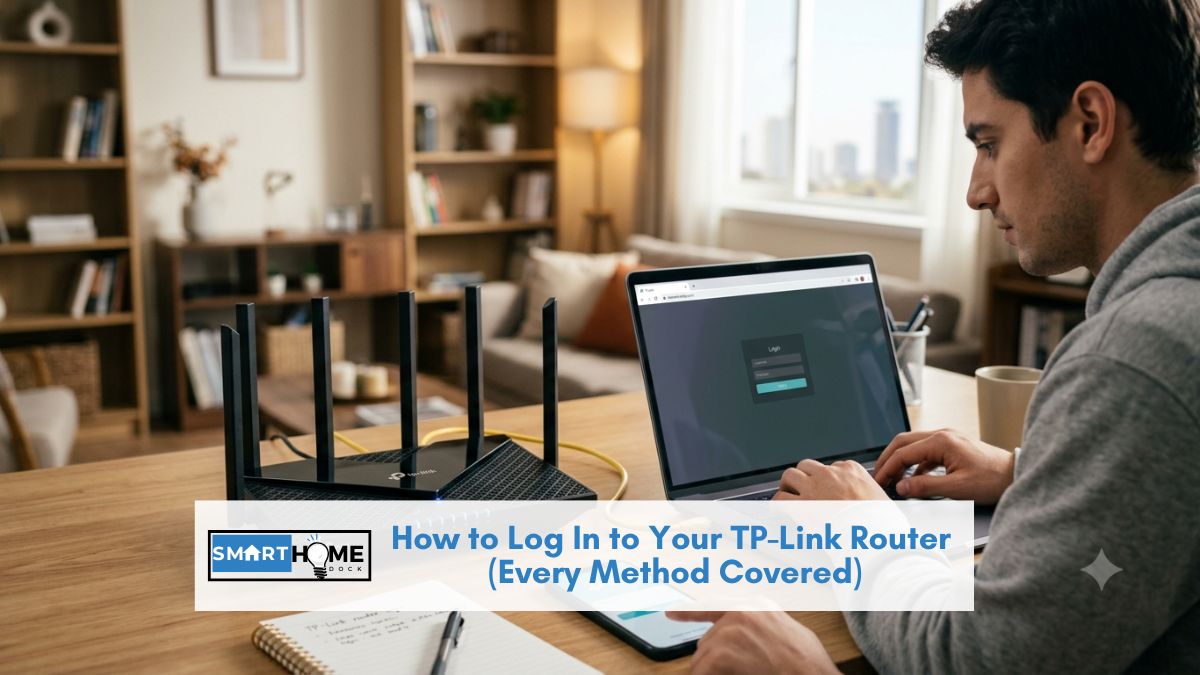
You type 192.168.0.1 into the browser, hit Enter, and absolutely nothing happens. Or you get to the TP-Link router login page, try “admin” for both username and password, and it just shakes at you.
Both situations are genuinely common, and neither means your router is broken. They usually mean you’re using the wrong URL, the wrong credentials for your model, or something on your device is blocking the page from loading.
This guide covers every TP-Link router login method, browser, and app. Each failure scenario has a specific fix. You’ll be in the admin panel in under five minutes.
Quick Answer
To access the TP-Link router login page, open a browser and type tplinkwifi.net or 192.168.0.1 in the address bar, not the search bar. If prompted for credentials, newer routers ask you to create a custom password on first login. Older models use admin for both username and password. If the page won’t load, disable your VPN first.
What You Need Before Logging In
Before attempting a TP-Link router login, confirm two things. First, your device must be connected to the TP-Link router, either via Wi-Fi or an Ethernet cable plugged into one of the LAN ports.
Second, you need a web browser: Chrome, Firefox, or Edge all work correctly. Safari works too, but wired Ethernet is more reliable than Wi-Fi for the initial setup.
Additionally, check the label on the bottom of your router. This label shows the login address, default Wi-Fi name, and, on newer models, a unique admin password. Keep it visible before starting.
How to Log In to TP-Link Router via Browser (tplinkwifi.net or 192.168.0.1)
- Open your web browser. Use Chrome, Firefox, or Edge. Do not use the browser’s search bar; use the address bar at the very top of the window.
- Type the login address and press Enter. Try
tplinkwifi.netfirst. If that doesn’t load, tryhttp://192.168.0.1. Some models use192.168.1.1instead; check your router’s bottom label to confirm. - Proceed past the HTTPS warning. Chrome and Firefox show a security warning on the TP-Link admin page because the router uses a self-signed certificate. This warning is safe to ignore. Click Advanced, then click Proceed to tplinkwifi.net or Proceed to 192.168.0.1. The login page loads after this step.
- Identify your login screen type. What you see next depends on your router model and whether you’ve logged in before. See the section below for the three different screens TP-Link routers show.
- Enter your credentials and click Login. Once in, you land on the router’s admin panel — where you can change Wi-Fi passwords, manage devices, update firmware, and configure port forwarding.
⚠️ Always type the address — never search for it
Typing
192.168.0.1into Google or Bing searches the internet, not your router. That search returns router login pages from third-party sites, none of which connect to your actual device. Put the address directly into the browser’s address bar and press Enter.
The Three TP-Link Router Login Screens — Which One Are You Seeing?
This is the section most guides miss entirely. TP-Link routers don’t all show the same login screen. The screen you see depends on your router’s model and history.
Consequently, the credentials you enter differ too.
Screen 1 — First-time setup (newer routers, 2021 onward)
Newer Archer, Deco, and AX-series routers prompt you to create a new admin password before showing the dashboard.
There is no default username or password to enter. Instead, you type a new password of your choice, confirm it, and proceed.
This happens only once, on the first login ever. Therefore, note this password down somewhere safe immediately after setting it.
Screen 2 — Returning user with custom password
If someone has already set up this router, the login page shows a single password field. Simply enter the custom admin password created during the initial setup.
Notably, there is no username field on most current models, only the password. If you don’t know this password, see the Forgot Password section below.
Screen 3 — Older model using admin/admin defaults
Older TP-Link routers, generally those bought before 2020, use admin as both the username and password by default.
However, this only works if nobody has changed these credentials previously. Furthermore, some older models print a unique default password on the bottom label. Always check it before assuming “admin/admin” is correct.
💡 Expert Tip — Nyamweru’s login rule after 8+ years
Every time I set up a TP-Link router, I photograph the bottom label before installing it, firmware version, default credentials, Wi-Fi password, and MAC address. That photo takes 10 seconds and has saved me hours of troubleshooting across three different routers over the years.
Additionally, write the custom admin password on a sticker and attach it to the router itself. Future-you, or anyone else who needs to access the router, will be very grateful.
TP-Link Tether App — The Easier Alternative to Browser Login
If the browser method isn’t working, the TP-Link Tether app is a complete alternative. Tether handles everything the web admin panel does, from your phone, without typing an IP address.
To use it, download the Tether app (iOS or Android), connect your phone to the TP-Link router’s Wi-Fi, and open the app. Tether automatically finds the router on your network.
It then presents the same settings in a mobile-friendly interface. For first-time setup, Tether guides you through the process step by step, considerably easier than the browser approach for most users.
Furthermore, for TP-Link Deco mesh systems specifically, Tether is the primary management tool. Deco systems use the Deco app as their primary management interface, not a browser admin panel.
TP-Link Router Login Page Not Loading — Fix Every Problem
If tplinkwifi.net or 192.168.0.1 won’t open, one of the following is almost certainly the cause. Work through these in order.
Fix 1: Turn off your VPN
An active VPN reroutes traffic through external servers, away from your local router network entirely. As a result, 192.168.0.1 becomes unreachable.
Disable the VPN, then try the login address again immediately. This single step fixes the problem in the majority of cases where the page won’t load.
Fix 2: Disable Secure DNS in your browser
Chrome, Firefox, and Edge all enable Secure DNS (DNS over HTTPS) by default. Secure DNS routes DNS queries through external servers.
As a result, the browser bypasses your router’s local DNS entirely. Consequently, tplinkwifi.net fails to resolve.
To disable Secure DNS in Chrome: go to Settings → Privacy and Security → Security → Advanced. Turn off “Use secure DNS.”
In Firefox: navigate to Settings → Privacy and Security → DNS over HTTPS. Select “Off.” After disabling, try the login address again.
Fix 3: Clear your browser cache
Browsers sometimes cache the public IP address tplinkwifi.net from a previous session on a different network.
When this cached address doesn’t match your current router, the page fails. Clear your browser history and cache in Chrome: Ctrl+Shift+Delete (Windows) or Cmd+Shift+Delete (Mac) — then try again.
Fix 4: Try the IP address directly
If tplinkwifi.net Still doesn’t work; use the IP address directly. Type http://192.168.0.1 into the address bar. Note the http:// prefix — without it, some browsers try to search for the term rather than navigate to it. If 192.168.0.1 also fails, try 192.168.1.1 instead. Your specific router model determines which address it uses — check the bottom label.
Fix 5: Use a wired Ethernet connection
Wireless connections sometimes drop mid-load during initial setup when the router’s Wi-Fi is still configuring itself.
Therefore, plug directly into one of the router’s LAN ports with an Ethernet cable and try again. Wired connections are always more reliable for admin panel access.
Fix 6: Restart the router
Notably, power cycling resolves a surprising number of admin page access issues. Turn off the router, wait 30 seconds, turn it back on, and wait another 60 seconds for it to fully boot. Then try the login address again.
Fix 7: Try a different browser or device
Browser extensions, ad blockers, privacy extensions, and security software sometimes interfere with local network page loading.
First, try opening the login page in a private/incognito window, which disables most extensions.
Alternatively, try a completely different browser or a different device (phone, tablet, or second computer) connected to the same router.
Forgot Your TP-Link Router Login Password? How to Reset Access
If you forgot the custom admin password, a factory reset is the only way back in to the TP-Link router login.
Importantly, a factory reset erases all custom settings, Wi-Fi name, Wi-Fi password, port forwarding rules, everything. You’ll need to reconfigure the router from scratch afterward.
How to factory reset a TP-Link router
- Locate the reset button. It’s usually a small recessed button on the back or bottom of the router, labelled RESET. You’ll need a paperclip or pin to press it, most routers include one in the box.
- Press and hold the reset button for 10 seconds while the router is powered on. The router’s lights will flash and then the device will restart.
- Wait 60 seconds for the router to fully reboot to factory defaults.
- Log in using the default credentials from the bottom label — or create a new password if prompted on the first-time setup screen.
Before resetting, note down your ISP’s connection settings if possible, PPPoE username and password especially.
Your internet provider can resupply these. However, having them ready speeds up reconfiguration significantly.
How to Change Your TP-Link Router Admin Password
Once logged in to the TP-Link router admin panel, changing the admin password takes less than two minutes.
A strong, unique admin password prevents anyone on your network from accessing router settings, so change it before doing anything else.
- Log in using your current credentials.
- Go to Advanced → System → Administration (on newer firmware) or System Tools → Password (on older firmware).
- Enter your current admin password, then type and confirm your new password.
- Click Save. The router logs you out and asks you to log in again with the new password.
Additionally, older models that still show the “admin” default username are worth updating too. It adds security without complexity.
Frequently Asked Questions About TP-Link Router Login
What are the default TP-Link router login username and password?
For TP-Link router login on older models (typically bought before 2021), the default username is admin, and the default password is admin.
However, newer Archer, AX-series, and Deco routers no longer use these defaults.
Instead, they prompt you to create a custom admin password during first-time setup.
Always check the bottom label of your specific router; many models print a unique default password there rather than using the generic “admin.”
Why is tplinkwifi.net not working?
The most common cause is an active VPN; disable it and try again immediately. The second most common cause is Secure DNS in your browser.
It bypasses the router’s local DNS and prevents tplinkwifi.net from resolving. Disable Secure DNS in your browser settings and try again.
If neither fixes it, try the IP address directly: http://192.168.0.1 or http://192.168.1.1.
Clearing your browser cache also resolves problems where a stale public IP is cached for tplinkwifi.net.
What is the TP-Link router IP address for login?
Most TP-Link routers use 192.168.0.1 as the default login IP address. Some models use 192.168.1.1 instead.
Aginet mesh routers use 192.168.88.1. The correct address for your specific model is printed on the label on the bottom of the router.
Alternatively, open Command Prompt on Windows and type ipconfig.
The Default Gateway address shown is your router’s IP.
How do I log in to TP-Link router without a password?
If you’ve forgotten your TP-Link router login password, the only option is a factory reset.
Press and hold the RESET button on the router for 10 seconds while it’s powered on.
After rebooting, log in using the default credentials from the bottom label.
If the first-time setup screen appears, create a new password.
Note that a factory reset erases all custom settings, including your Wi-Fi name and password.
Can I log in to my TP-Link router from my phone?
Yes, the TP-Link Tether app provides complete router management from iOS or Android without using a browser.
Download Tether, connect your phone to the router’s Wi-Fi, and open the app.
Tether then automatically detects the router and provides access to all settings.
For Deco mesh systems, the Deco app is the primary management interface.
This method is particularly useful when the browser-based login page won’t load.
What to Do Next
✅ You’re now in the admin panel — change these three things first
- Admin password: Change it from the default to something unique. Go to Advanced → System → Administration.
- Wi-Fi password: If you’re still using the factory Wi-Fi password, update it under Wireless → Wireless Settings.
- Firmware: Check for updates under Advanced → System → Firmware Upgrade. Additionally, updated firmware fixes security vulnerabilities and improves performance.
✅ The login page still won’t load after all fixes above
In that case, try the TP-Link Tether app. It connects directly via Wi-Fi, no browser login page needed. If Tether also fails, however, a factory reset via the physical RESET button is the next step. Contact TP-Link Support if the reset doesn’t resolve it.
