


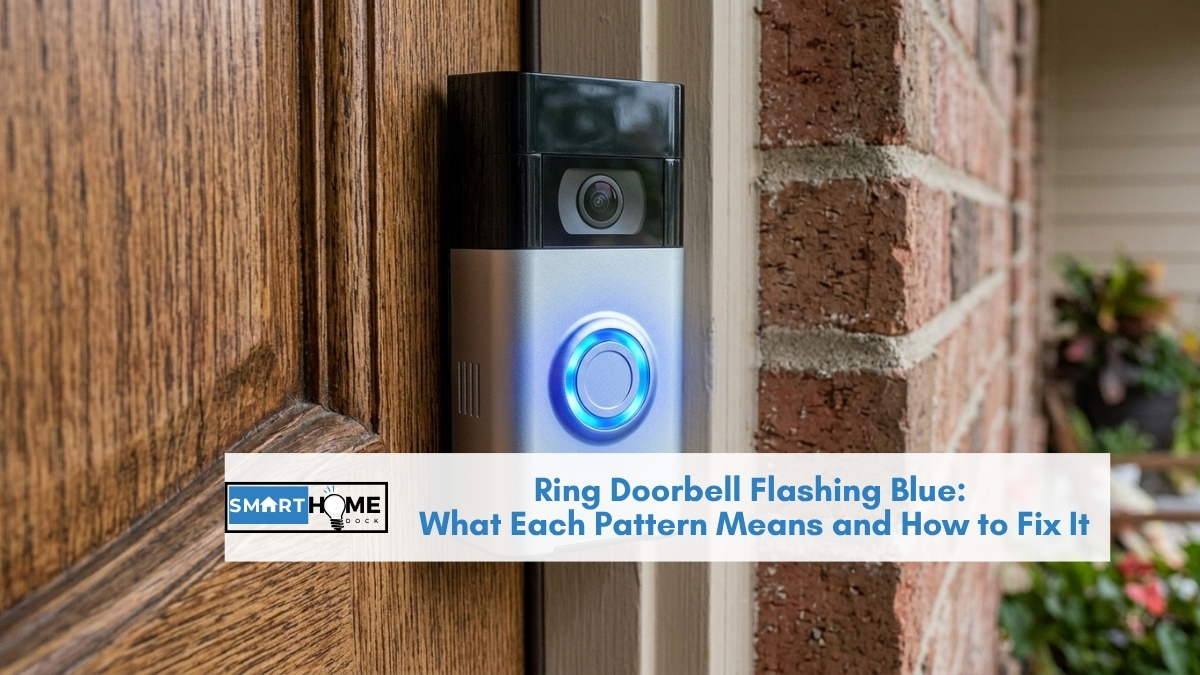
A ring doorbell flashing blue is not always a problem.
Several completely normal operations produce a blue LED pattern: setup mode, someone pressing the button, two-way talk activating, a firmware update running. The fix depends entirely on which specific pattern you are seeing.
Find your pattern in the reference table below.
Most issues are resolved in the table. If your pattern indicates a connection problem, the fix steps follow immediately after.
Quick Answer: Ring Doorbell Flashing Blue
Slow spinning blue: doorbell is in setup mode waiting for Wi-Fi. Open the Ring app and complete setup.
Fast spinning blue: doorbell is actively connecting to Wi-Fi. Wait 60 seconds: it usually resolves itself. If not, see the Wi-Fi fix steps below.
Four segments flashing blue: setup failed. Restart the setup process from the Ring app.
Blue light won’t stop / continuous rapid flashing: connection lost or failed. Work through the Wi-Fi fix steps below: this resolves in the majority of cases.
Solid blue on button press: normal. Someone pressed the doorbell button.
Ring Doorbell Blue Light Meaning: Every Pattern Explained
Notably, the Ring doorbell communicates its current state through LED flash patterns.
Each pattern has a precise meaning. Identify your pattern here before doing anything else.
| LED pattern | What it means | Action needed |
|---|---|---|
| Solid blue (1 second flash) | Doorbell button was pressed | None: this is normal operation |
| Blue spinning upward (moving up the circle) | Speaker is active: two-way talk in progress | None: ends when call ends |
| Slow spinning blue (full circle rotation) | Setup mode: doorbell waiting for Wi-Fi connection during initial setup | Open Ring app and complete setup. See setup section below. |
| Fast spinning blue | Actively connecting to Wi-Fi | Wait 60 seconds. If it does not go solid or stop, see Wi-Fi fix below. |
| Four blue segments flashing | Setup failed: incorrect Wi-Fi password or wrong network | Restart setup in the Ring app. Confirm 2.4GHz network and correct password. |
| Continuous rapid blue flashing | Connection lost or failed to connect after previously being set up | See Wi-Fi fix steps below. |
| Blue and white alternating flash | Firmware update in progress | None: do not unplug or reset. Wait 5 to 10 minutes for update to complete. |
| Spinning blue then single white flash | Factory reset completing | None: wait for reset to finish, then set up the doorbell again in the Ring app. |
⚠️ Do not interrupt a firmware update. If you see blue and white alternating flashes, the doorbell is updating its firmware. Unplugging, resetting, or removing the battery during this process can corrupt the firmware and require Ring support to restore. Wait it out: updates typically complete within 5 to 10 minutes.
Ring Doorbell Spinning Blue During Setup: What to Do
A slow spinning blue means the doorbell is in ring doorbell setup mode, waiting for you to connect it to your Wi-Fi network through the Ring app. This is the expected state during initial installation.
Specifically, the most common setup failure reason is the 2.4GHz vs 5GHz Wi-Fi issue. Ring doorbells connect to 2.4GHz Wi-Fi only.
If your phone is connected to your router’s 5GHz network when you start setup in the Ring app, the doorbell cannot find your network, and the setup stalls on spinning blue.
To complete setup from spinning blue:
- Go to your phone’s Wi-Fi settings and confirm you are connected to the 2.4GHz network: usually the one without a “5G” or “5GHz” suffix in the name.
- Open the Ring app, tap the plus icon, and select Set Up a Device.
- Follow the in-app pairing steps. The doorbell exits spinning blue and shows a brief solid blue flash when it successfully connects.
If setup fails and you see four blue segments flashing, the most common cause is an incorrect Wi-Fi password entered during setup.
Ring passwords are case-sensitive. Restart the setup flow and re-enter the password carefully.
Ring Doorbell Flashing Blue and Not Connecting: Step-by-Step Fix
Continuous or rapid blue flashing on a previously working Ring doorbell means it has lost its Wi-Fi connection or cannot reconnect.
Work through these steps in order: the majority of cases resolve at step 1 or 2.
Step 1: Power cycle the router (fixes most cases)
Unplug your router from the wall, wait 30 seconds, and plug it back in. Wait 2 minutes for the router to fully restart, then check whether the Ring doorbell connects.
A router reboot resolves temporary Wi-Fi authentication failures that cause most Ring reconnection failures.
Specifically, if the doorbell is within range of the router and the password has not changed, this alone resolves the issue in the majority of cases.
Step 2: Check signal strength in the Ring app
Open the Ring app, tap the three-line menu, go to Devices, select your doorbell, and tap Device Health. Check the RSSI value under Network.
RSSI between -40 and -60 is strong. RSSI between -60 and -75 is marginal. Below -75, connection failures become frequent and persistent.
If RSSI is poor: move the doorbell closer to the router temporarily to confirm signal is the issue.
If the connection restores when closer, a Ring Chime Pro (~$50) or a Wi-Fi extender positioned between the router and doorbell will address the range problem permanently.
Step 3: Confirm the doorbell is on the right network
If you recently changed your Wi-Fi network name or password, the doorbell is trying to connect to credentials that no longer exist.
In the Ring app, go to Device Health, tap Change Wi-Fi, and reconnect the doorbell to your current network with the updated password.
Step 4: Remove and reinstall the battery (battery models)
For battery Ring doorbells: remove the battery using the Quick Release button (Plus and Pro models) or by removing the unit from its bracket (base Battery Doorbell).
Wait 10 seconds. Reinstall the battery. The doorbell reboots and attempts a fresh Wi-Fi connection.
This clears transient firmware states that sometimes cause persistent blue flashing that a router reboot alone does not resolve.
Step 5: Update firmware and Ring app
Notably, firmware updates download automatically when the doorbell has a Wi-Fi connection, so a firmware issue is unlikely to cause connection failure.
However, an outdated Ring app can occasionally cause the app to misreport doorbell status.
Check for Ring app updates in the App Store or Google Play and install any available update before continuing.
Step 6: Factory reset the doorbell
Consequently, if all above steps fail, a factory reset clears all stored settings and returns the doorbell to an out-of-box state.
Note that after a factory reset, you must remove the doorbell from the Ring app and set it up again from scratch: all motion zones, schedules, and device names are erased.
How to factory reset a Ring doorbell (2nd Gen 2026 lineup):
- Battery Doorbell (2nd Gen) and Battery Doorbell Plus (2nd Gen): press and hold the orange button on the back of the doorbell for 20 seconds. Release when the LED starts spinning. Wait for the reset to complete (spinning blue then white flash).
- Battery Doorbell Pro (2nd Gen): use a pin or paperclip to press and hold the reset hole on the back for 10 seconds. Release when the LED pattern changes.
- Wired Doorbell Pro: press and hold the small button on the rear of the unit for 10 seconds.
After the reset completes, go to the Ring app, tap Devices, select your doorbell, and tap Remove Device. Then set up the doorbell again from the beginning using Set Up a Device in the app.
The pattern that catches most people out
Eight years of troubleshooting Ring doorbells has shown one pattern that causes repeated failure even after correct setup: the doorbell was paired to a 2.4GHz network, then the router was upgraded or replaced with a mesh system that broadcasts one combined network name for both 2.4GHz and 5GHz bands. The Ring doorbell reconnects on 5GHz: which it cannot use: and enters a perpetual reconnection loop that looks like a connection problem rather than a frequency problem.
If your router or mesh system was changed since you last set up the Ring doorbell, and standard troubleshooting is not resolving the flashing blue, go into your router’s admin panel and create a separate 2.4GHz network name. Connect the Ring doorbell specifically to that network via the Ring app’s Change Wi-Fi option. This resolves the issue permanently.
When to Contact Ring Support
If a factory reset followed by fresh setup does not resolve persistent blue flashing, the issue has moved beyond software and settings.
At this point, contact Ring support directly at ring.com/support.
Specifically, the cases that require Ring support rather than user-side troubleshooting are: hardware failure of the Wi-Fi radio (rare but documented), firmware corruption from an interrupted update, and accounts where the device registration is stuck in an error state that requires Ring’s backend to clear.
Specifically, before contacting support: note your doorbell model, the specific LED pattern you are seeing, and which troubleshooting steps you have already completed.
This allows Ring’s team to skip the basic steps and move directly to model-specific diagnostics.
Frequently Asked Questions: Ring Doorbell Flashing Blue
Why is my Ring doorbell flashing blue?
Specifically, several different things cause a ring doorbell flashing blue LED, and the meaning depends on the specific pattern.
A slow spinning blue means the doorbell is in setup mode waiting for Wi-Fi.
A fast spinning blue means it is actively connecting. Four segments flashing blue means a setup attempt failed.
Continuous rapid blue flashing means a previously connected doorbell has lost its Wi-Fi connection.
A solid blue flash lasting one second means someone pressed the doorbell button, which is normal operation.
A blue and white alternating flash means a firmware update is in progress.
Furthermore, each pattern has a different cause and a different response.
Why is my Ring doorbell flashing blue and not connecting?
Continuous blue flashing on a previously working Ring doorbell means it cannot connect to your Wi-Fi network.
The most common causes in order of frequency: the router needs a reboot (unplug for 30 seconds), the Wi-Fi password changed after setup (update via Device Health in the Ring app), the doorbell is out of range (check RSSI in Device Health: below -75 is problematic), or the doorbell accidentally connected to a 5GHz network it cannot use.
Work through the step-by-step fix section above in order.
The majority of ring doorbell flashing blue not connecting cases resolve at step 1 (router reboot) or step 3 (network password update).
What does a slowly spinning blue light mean on a Ring doorbell?
A slow spinning blue light means the Ring doorbell is in ring doorbell setup mode: it is waiting for you to connect it to your Wi-Fi network through the Ring app. This is the normal state during initial installation.
Open the Ring app and complete the setup process.
The most common reason the doorbell gets stuck in spinning blue during setup is that the phone used for setup is connected to the 5GHz Wi-Fi band rather than 2.4GHz.
Ring doorbells only connect to 2.4GHz. Switch your phone to the 2.4GHz network before completing the setup steps in the app.
How do I reset a Ring doorbell that is flashing blue?
To ring doorbell reset the 2nd Gen Battery Doorbell or Battery Doorbell Plus: press and hold the orange button on the back for 20 seconds.
Release when the LED starts spinning, then wait for the spinning blue followed by a single white flash: this indicates the reset is complete.
For the Battery Doorbell Pro (2nd Gen): press and hold the pin reset hole on the back for 10 seconds.
After reset, remove the doorbell from the Ring app under Devices and set it up again from scratch.
Note that a reset erases all motion zones, schedules, and connection settings stored on the device.
Will my Ring doorbell still work while flashing blue?
It depends on the pattern. If it is showing a solid blue flash because someone pressed the button, yes: it is functioning normally.
If it is showing slow spinning blue in setup mode or continuous rapid blue from a lost connection, the camera and motion detection are not working: the doorbell cannot send motion alerts, record events, or accept live view requests until the connection is restored.
A firmware update (blue and white alternating) temporarily reduces functionality while the update installs, then restores normal function automatically.
