


You bought a TP-Link extender to fix the dead WiFi zone in your bedroom, plugged it in, and now you’re staring at blinking lights with no idea what to do next.
The instruction card shows a QR code and three confusing diagrams, and the TP-Link support page sends you through a maze of model-specific FAQs. All you wanted was WiFi in your bedroom.
Setting up a TP-Link extender actually takes about 5 minutes once you know the right method.
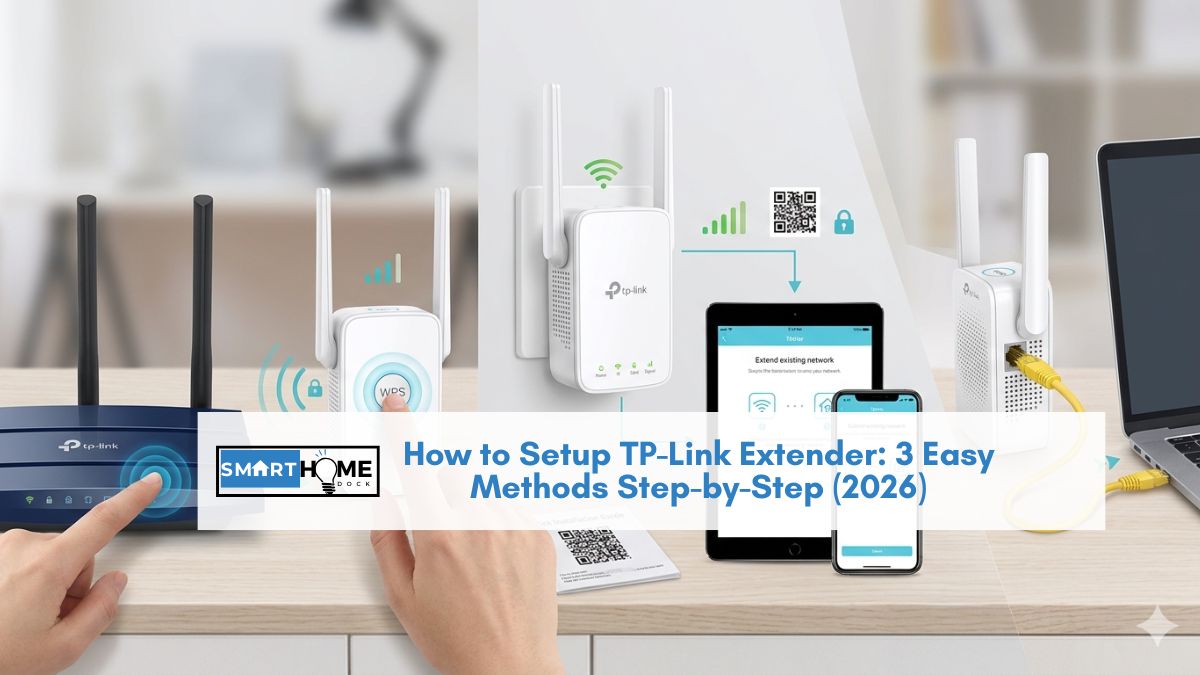
There are three ways to do it: the Tether app (easiest), a web browser (most reliable), or the WPS button (fastest).
This guide covers all three with step-by-step instructions that work for every current TP-Link extender model, plus a troubleshooting section for when things don’t go as planned.
Quick Answer: The fastest way to setup a TP-Link extender is the WPS method: plug in the extender near your router → press the WPS button on your router → press the WPS button on the extender within 2 minutes → wait for the signal LED to turn solid → move the extender halfway between your router and the dead zone. Total time: under 3 minutes.
Before You Start: What You’ll Need
- Your TP-Link extender is plugged into a power outlet near your router (you’ll move it later)
- Your WiFi network name (SSID) and password
- A smartphone with the TP-Link Tether app (for Method 1) OR a laptop/phone with a web browser (for Method 2)
💡 Expert Tip:
Always do the initial setup with the extender plugged in right next to your router — within 3 feet. This guarantees a strong signal during configuration. After setup is complete, you’ll move the extender to its permanent location (halfway between the router and the dead zone). Setting up the extender in its final location often fails because the signal is too weak during the configuration process.
Method 1: Setup TP-Link Extender via Tether App (Easiest)
The Tether app is the easiest way to setup a TP-Link extender because it walks you through every step visually.
Download it from the App Store (iOS) or Google Play (Android) before starting.
Step 1: Plug In and Open the App
Plug the extender into an outlet near your router. Wait until the Power LED turns solid green (about 30 seconds).
Open the Tether app and log in with your TP-Link ID. If you don’t have one, create a free account. It takes 30 seconds.
Step 2: Add the Extender
Tap the + icon in the top right corner and select Range Extender.
The app will prompt you to connect your phone to the extender’s temporary WiFi network, which appears as TP-Link_Extender in your phone’s WiFi settings. Connect to it, then return to the Tether app.
Step 3: Select Your Home Network
The app will scan for available WiFi networks. Select your home network’s 2.4 GHz SSID and enter the password.
If your router is dual-band, the app will then ask you to connect the 5 GHz network as well — enter the password for that band too.
Step 4: Name Your Extended Network
The app suggests default names like “YourNetwork_EXT” for the extended networks. You can keep these or customise them.
I recommend keeping different names, so you always know whether your device is connected to the router directly or through the extender.
Step 5: Apply and Relocate
Tap Save and wait for the extender to reboot (about 90 seconds).
Once the Signal LED turns solid, unplug the extender and move it to its permanent location, ideally halfway between your router and the WiFi dead zone.
Plug it back in, wait 2 minutes for the LEDs to stabilise, and you’re done.
Method 2: Setup TP-Link Extender via Web Browser (Most Reliable)
If the Tether app isn’t cooperating, the web browser method is the most reliable way to set up a TP-Link extender. It works from any device with a browser, laptop, phone, or tablet.
Step 1: Connect to the Extender’s Network
Plug the extender in near your router. On your laptop or phone, go to WiFi settings and connect to the network called TP-Link_Extender (no password required for initial setup).
Step 2: Open the Setup Page
Open any web browser and type http://tplinkrepeater.net or http://192.168.0.254 in the address bar.
A login page will appear. Create a local management password (this is NOT your WiFi password, it’s for accessing the extender’s settings later).
Step 3: Run the Quick Setup Wizard
The wizard will scan for available networks. Select your home network’s 2.4 GHz SSID, enter the WiFi password, and click Next.
Repeat for the 5 GHz network if applicable. Customise the extended network names or keep the defaults, then click Save.
Step 4: Wait and Relocate
The extender will reboot and apply settings (about 90 seconds).
Once the Signal LED turns solid, move the extender to its permanent location halfway between your router and the dead zone.
Method 3: Setup TP-Link Extender via WPS Button (Fastest)
WPS (WiFi Protected Setup) is a one-button connection method that requires no app, no browser, and no passwords. However, it only works if your router has a WPS button.
Step 1: Plug In the Extender
Plug the extender into an outlet near your router. Wait for the Power LED to turn solid.
Step 2: Press WPS on Both Devices
Press the WPS button on your router first. Within 2 minutes, press the WPS button on the TP-Link extender. The WPS/RE LED on the extender will start blinking.
Step 3: Wait for Connection
Wait up to 2 minutes. When the Signal LED turns solid (green, white, or blue, depending on your model), the connection is successful. The extender automatically copies your router’s WiFi name and password.
Step 4: Relocate
Move the extender to its permanent position halfway between the router and the dead zone. Wait 2 minutes for LEDs to stabilise.
Note: WPS connects one band at a time. If your router is dual-band (2.4 GHz + 5 GHz), repeat the WPS process a second time to connect to the other band. Some newer TP-Link extenders connect both bands in a single WPS press — check your extender’s quick start guide.
Where to Place Your TP-Link Extender for Best Performance
Placement makes more of a difference than any setting you can change in the app. Follow these rules:
The halfway rule: Place the extender roughly halfway between your router and the area where WiFi is weak. The extender needs to receive a strong signal from the router to rebroadcast effectively. Placing it in the dead zone itself defeats the purpose there’s nothing to amplify.
Check the Signal LED: After placing the extender, look at the Signal LED. On most TP-Link models, solid green or white means excellent signal. Solid amber or orange means the signal is weak and you should move the extender closer to the router. If the LED is red or off, the extender is too far from the router.
Avoid interference: Keep the extender away from microwaves, baby monitors, cordless phones, and large metal appliances. These devices operate on the same 2.4 GHz frequency and can interfere with your extended WiFi signal. Also, avoid placing the extender behind thick concrete walls or inside metal cabinets.
TP-Link Extender Not Working: Troubleshooting
tplinkrepeater.net Won’t Load
Make sure your device is connected to the TP-Link_Extender WiFi network (not your regular home network).
If the page still won’t load, try typing 192.168.0.254 directly in the address bar instead. Clear your browser cache or try a different browser.
If using a phone, disable mobile data temporarily. Some phones prioritise cellular over WiFi when the WiFi has no internet.
Extender Can’t Find My WiFi Network
Move the extender closer to your router (within 3 feet). Make sure your router’s 2.4 GHz band is enabled — some extenders don’t see 5 GHz-only networks.
Restart both the router and extender, then try scanning again.
Connected but No Internet
Double-check that you entered the correct WiFi password during setup (it’s case-sensitive). Try restarting the extender by unplugging it for 30 seconds.
If the problem persists, factory reset the extender by pressing the Reset pinhole button with a paperclip for 10 seconds, then set it up again from scratch.
Slow Speeds Through the Extender
WiFi extenders typically halve your internet speed because they receive and rebroadcast on the same channel.
For better performance, connect the extender to your router’s 5 GHz band (faster, less congested) and use the 2.4 GHz band for the extended network.
If speeds are still too slow, consider upgrading to a TP-Link mesh system (like Deco), which maintains full speed throughout your home.
Frequently Asked Questions About TP-Link Extender Setup
What is tplinkrepeater.net?
tplinkrepeater.net is the web address used to access your TP-Link extender’s settings and setup page.
It only works when your device is directly connected to the extender’s WiFi network.
If the address doesn’t load, try typing 192.168.0.254 in your browser instead. This IP address points to the same setup page.
Do I need the Tether app to setup a TP-Link extender?
No, the Tether app is the easiest method, but you can also use a web browser (tplinkrepeater.net) or the WPS button.
The WPS method requires no app or browser at all, just pressing two buttons.
For a complete comparison of all three methods, see the setup sections above.
Can I use a TP-Link extender with a non-TP-Link router?
Yes, TP-Link extenders work with any router brand (Netgear, Asus, Linksys, ISP-provided routers, etc.).
The extender simply connects to your existing WiFi network and rebroadcasts it, regardless of what router brand you use.
However, TP-Link’s OneMesh feature (seamless roaming) only works when paired with a TP-Link OneMesh router.
How do I factory reset a TP-Link extender?
With the extender powered on, use a pin or paperclip to press and hold the Reset button (usually a small pinhole on the side) for about 10 seconds until all LEDs flash once.
The extender will reboot to factory settings, and you can set it up again from scratch.
All previous settings, including WiFi passwords, will be erased.
Why is my TP-Link extender slow?
The most common cause is that the extender is placed too far from the router, resulting in a weak input signal that produces slow output.
Move the extender closer to the router and check the Signal LED (solid green = good, amber/orange = move closer).
Additionally, standard WiFi extenders halve bandwidth because they use the same radio to receive and transmit.
If speed is critical, consider upgrading to a mesh WiFi system.
