


Disclosure: This article may contain affiliate links. SmartHomeDock participates in the Amazon Associates Program and may earn commissions from qualifying purchases at no extra cost to you.
You plugged in your new Echo Dot, opened the Alexa app, and nothing happened.
The light ring spins orange, your WiFi network doesn’t appear in the list, and Alexa just sits there waiting.
Or maybe you changed your router password last week and now every Echo in the house is offline.
Learning how to connect Alexa to WiFi should take two minutes.
When it doesn’t, the problem is almost always one of three things: your Echo isn’t in setup mode, your router is broadcasting on 5 GHz only, or the Alexa app needs an update.
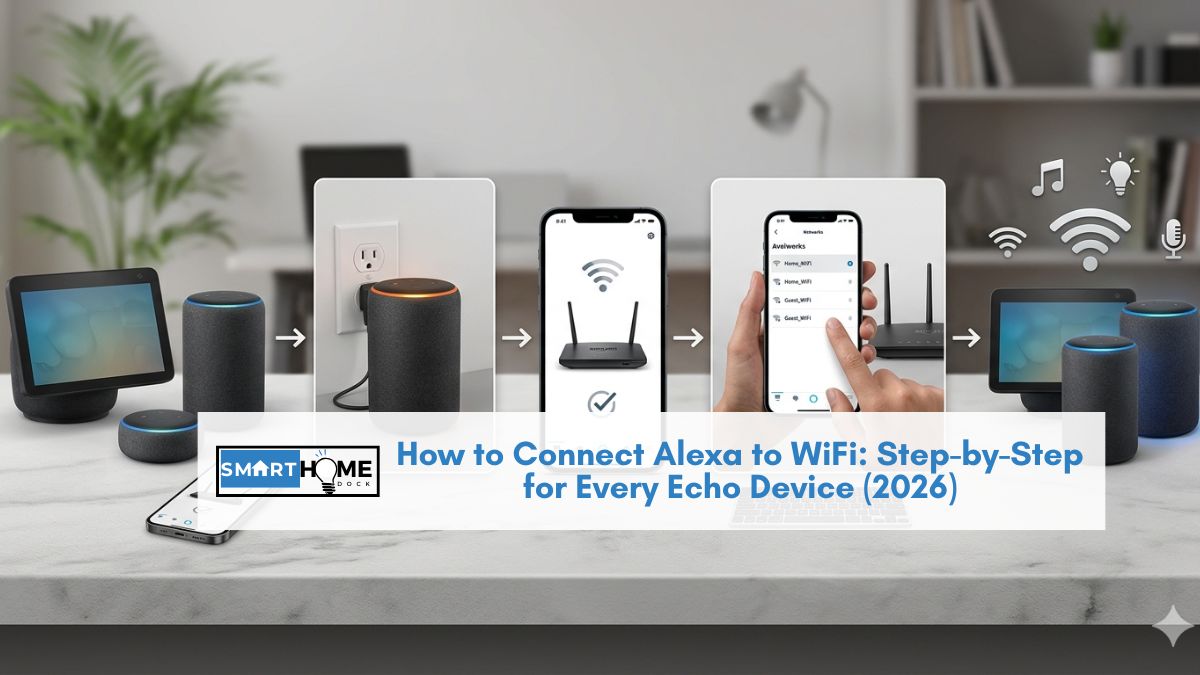
This guide walks you through the connection process step by step for every Echo device, plus a dedicated troubleshooting section for when things go wrong.
Quick Answer: To connect Alexa to WiFi, open the Alexa app → tap Devices → tap the + icon → Add Device → Amazon Echo → follow the on-screen instructions → hold the Action button on your Echo for 15 seconds until the light turns orange → select your WiFi network → enter your password → done. The entire process takes under 3 minutes.
What You’ll Need Before Connecting Alexa to WiFi
- Your Echo device is plugged into a power outlet
- The Alexa app is installed on your phone (iOS or Android). Make sure it’s updated to the latest version
- Your WiFi network name and password
- Your phone is connected to the same WiFi network you want your Echo to join
💡 Expert Tip:
Before starting, check whether your router broadcasts separate 2.4 GHz and 5 GHz networks or combines them into one. Most Echo devices work on both bands, but older Echo Dots (3rd gen and earlier) only connect to 2.4 GHz. If your router uses a combined network and the Echo won’t connect, temporarily separate the bands in your router settings, connect the Echo to the 2.4 GHz network, and then recombine them — the Echo will stay connected.
How to Connect Alexa to WiFi Using the Alexa App (New Device)
Follow these steps if you’re setting up a brand-new Echo device for the first time:
Step 1: Plug In Your Echo and Wait for the Orange Light
Connect your Echo to a power outlet using the included cable and adapter. Wait 30–60 seconds for it to boot up.
The light ring (or light bar on newer models) will turn blue, then orange. The orange light means the device is in setup mode and ready to connect.
If you don’t see an orange light, press and hold the Action button (the small dot button on top) for 15 seconds until it turns orange.
Step 2: Open the Alexa App and Add the Device
Open the Alexa app on your phone.
Tap Devices at the bottom of the screen, then tap the + icon in the top right corner.
Select Add Device, choose Amazon Echo, then select your specific Echo model (Echo Dot, Echo Show, Echo Pop, etc.). The app will begin searching for your device.
Step 3: Select Your Echo and Connect to WiFi
Once the app finds your Echo, select it from the list. The app will display available WiFi networks. Choose your home network and enter the password.
Tap Connect and wait 15–30 seconds for Alexa to confirm the connection. You’ll hear “Your device is ready” — and that’s it.
How to Connect Alexa to a New WiFi Network (Existing Device)
If you’ve changed your router, updated your WiFi password, or moved your Echo to a new location, use these steps to reconnect:
Step 1: Open the Alexa App
Open the Alexa app and tap Devices at the bottom. Tap Echo & Alexa, then select the specific device you want to reconnect.
Step 2: Access WiFi Settings
Tap the gear icon (Settings) in the top right corner. Scroll down to the WiFi Network section and tap Change.
Step 3: Put Your Echo in Setup Mode
The app will prompt you to hold the Action button on your Echo for 15 seconds. The light ring will turn orange, indicating setup mode.
Your phone may temporarily disconnect from WiFi to connect to the Echo’s temporary network. This is normal.
Step 4: Select the New WiFi Network
Choose your new WiFi network from the list, enter the password, and tap Connect. Alexa will confirm once it’s connected to the new network.
How to Connect Alexa to WiFi Without the App
If you don’t have the Alexa app installed or prefer using a computer, you can connect through a web browser:
- Open any web browser and go to alexa.amazon.com
- Log in with your Amazon account credentials
- Click Settings from the menu, then go to Devices → Set up a new device
- Select your Echo model and turn it on so the light turns orange
- On your computer, connect to the temporary Amazon-XXX WiFi network that appears in your available networks
- Return to the browser, select your home WiFi network, and enter the password
- The Echo will disconnect from the temporary network and connect to your home WiFi
This method works well when the Alexa app isn’t cooperating or when you’re setting up an Echo for someone who doesn’t have a smartphone.
Device-Specific WiFi Instructions
Echo Dot (3rd, 4th, 5th Gen)
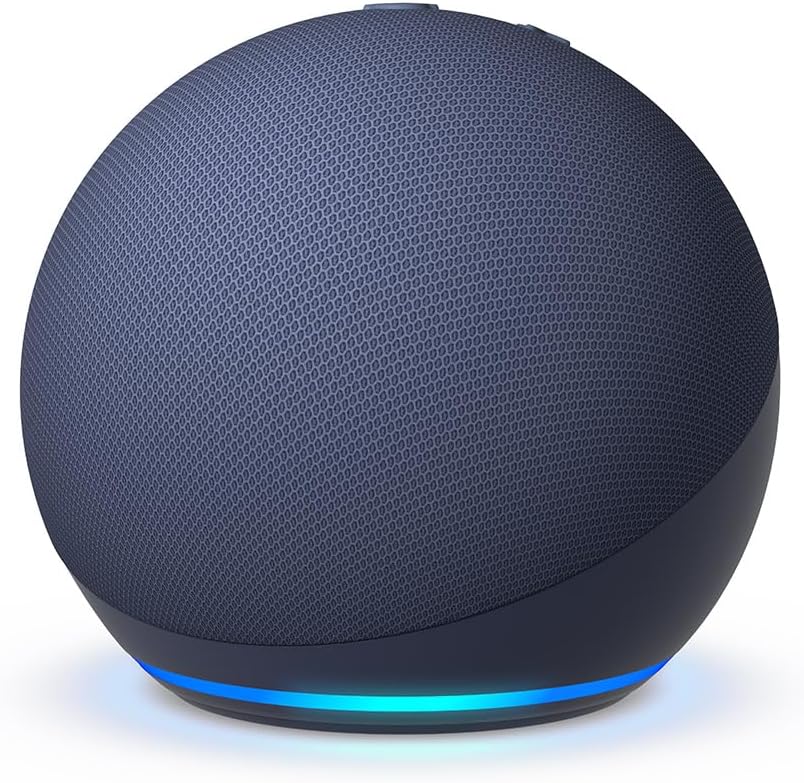
The Action button is the small circle button on top of the device. Press and hold for 15 seconds until the light ring turns orange.
Older Echo Dots (3rd gen) only support 2.4 GHz WiFi — if your network doesn’t appear, check your router’s frequency settings.
Echo Show (5, 8, 10, 15)
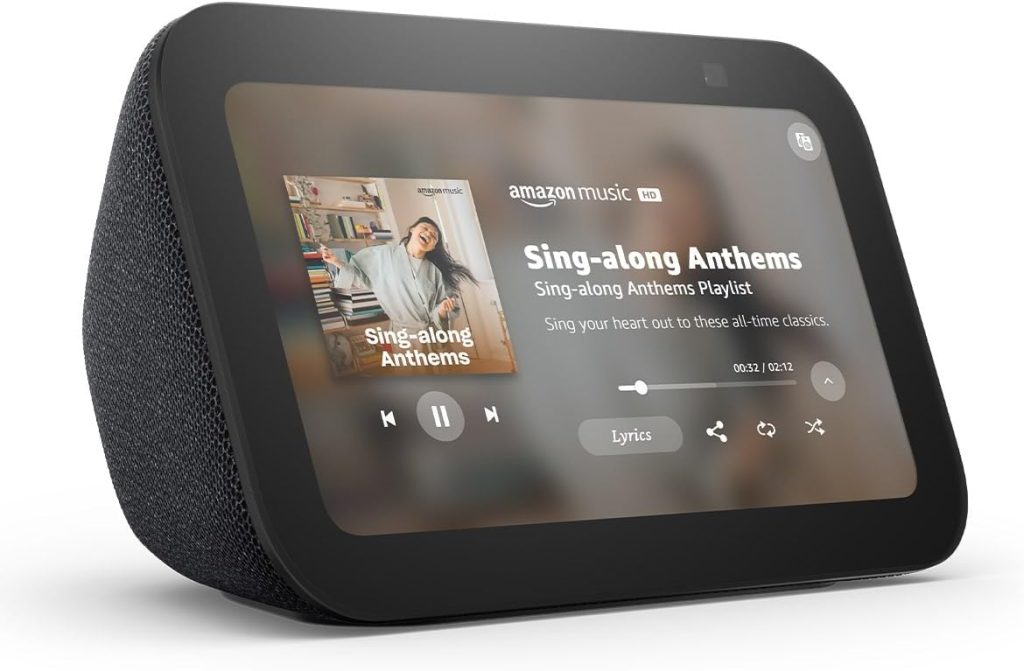
Echo Show devices with screens let you change WiFi settings directly on the device without the app.
Swipe down from the top of the screen, tap Settings → Network, and select your WiFi network. This is faster than using the app for Echo Show owners.
Echo Pop
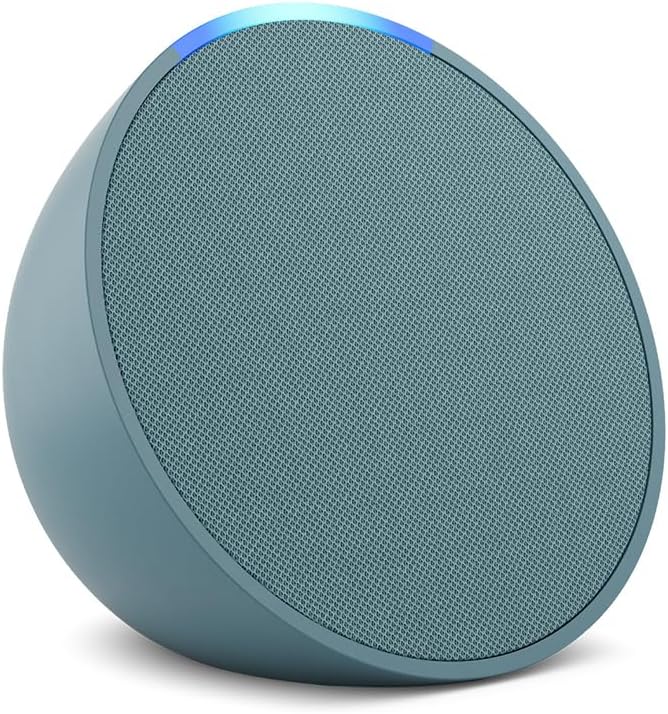
The Action button is on top of the Echo Pop. Set up follows the standard process through the Alexa app. Echo Pop supports both 2.4 GHz and 5 GHz networks.
Echo Studio
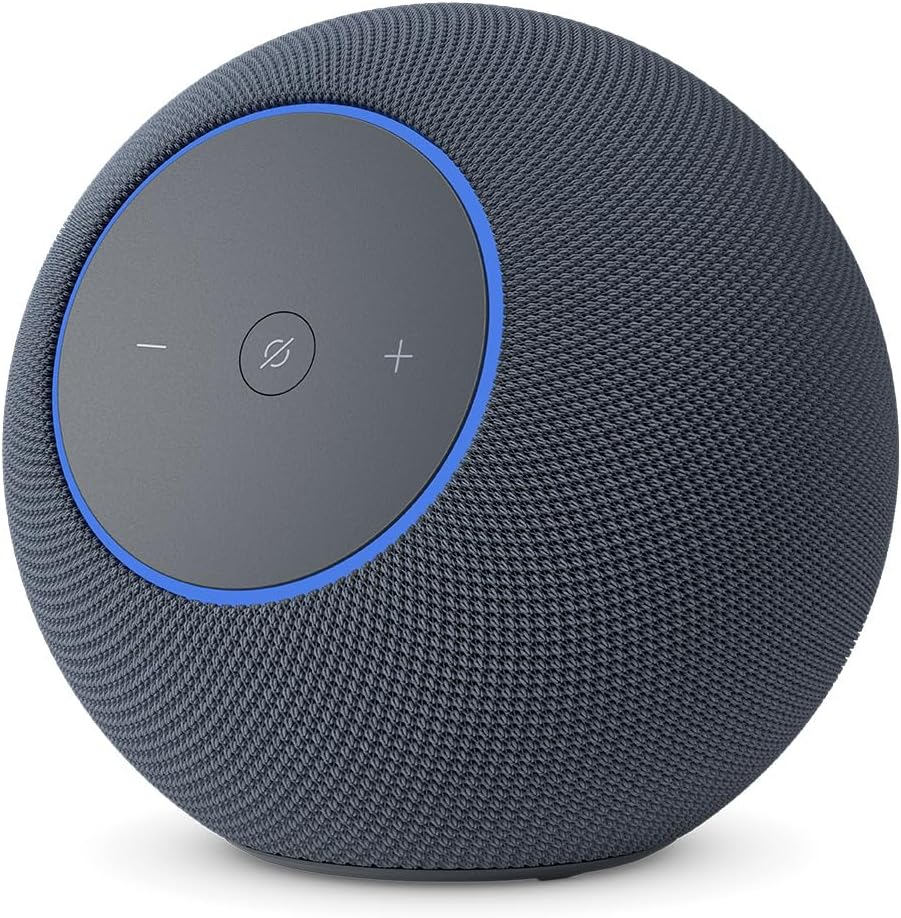
The Action button is on top near the light ring. Because the Echo Studio streams high-quality audio, connecting to 5 GHz WiFi is recommended for better bandwidth and less interference.
Alexa Won’t Connect to WiFi: Troubleshooting Guide
If your Echo won’t connect to WiFi, work through these fixes in order — they resolve the problem 95% of the time:
Fix 1: Restart Everything
Unplug your Echo for 30 seconds, then plug it back in. Restart your router by unplugging it for 30 seconds.
Wait for both to fully boot up (2–3 minutes for the router), then try connecting again. A simple power cycle fixes most WiFi issues.
Fix 2: Check Your WiFi Band
If your Echo doesn’t see your WiFi network, your router may be broadcasting on 5 GHz only. Most Echo devices support both 2.4 GHz and 5 GHz, but older models (Echo Dot 3rd gen, Echo 2nd gen) only see 2.4 GHz networks. Log into your router settings and confirm that the 2.4 GHz band is enabled.
Fix 3: Move Your Echo Closer to the Router
During setup, place your Echo within 10 feet of your router. Once connected, you can move it to its permanent location.
Thick walls, metal appliances, and microwave ovens can block WiFi signals and prevent initial connection.
Fix 4: Check the WiFi Password
WiFi passwords are case-sensitive. Double-check for capital letters, numbers, and special characters.
If you recently changed your router password, every Echo in the house will lose connection and need to be reconnected individually using the steps above.
Fix 5: Update the Alexa App
An outdated Alexa app can cause connection failures. Update to the latest version from the App Store (iOS) or Google Play (Android) before attempting setup.
Fix 6: Factory Reset Your Echo
If nothing else works, reset the Echo to factory settings. Press and hold the Action button for 25 seconds (until the light ring turns orange, then turns off, then turns orange again).
The device will restart in setup mode and you can connect to WiFi from scratch. Note: this erases all your settings and you’ll need to set up the device as new.
Frequently Asked Questions About Connecting Alexa to WiFi
Can Alexa work without WiFi?
Alexa requires an active WiFi connection for almost all functionality — voice commands, streaming music, smart home control, and answering questions all need internet access. Without WiFi, the only features that work are previously set alarms, timers, and Bluetooth audio playback from a paired phone. You cannot set up an Echo device at all without WiFi.
Why does Alexa keep disconnecting from WiFi?
Frequent disconnections are usually caused by router congestion (too many devices on the network), weak signal strength (Echo is too far from the router), or router firmware issues. Try moving the Echo closer to your router, reducing the number of devices on your WiFi network, or updating your router firmware. If the problem persists, assigning a static IP address to your Echo through your router settings often resolves persistent dropout issues.
How do I connect Alexa to WiFi after changing my router?
Open the Alexa app, go to Devices → Echo & Alexa → select your device → Settings → WiFi Network → Change. Put the Echo in setup mode by holding the Action button for 15 seconds, then select the new network and enter the password. You’ll need to do this for every Echo device on the old network.
Can I connect Alexa to mobile hotspot WiFi?
Yes — Alexa can connect to a mobile hotspot from your phone. Enable the hotspot on your phone, then follow the standard WiFi setup steps in the Alexa app, selecting your hotspot network. Keep in mind that this uses your mobile data and may result in slower response times compared to a home broadband connection.
How many Echo devices can connect to one WiFi network?
There is no Amazon-imposed limit on the number of Echo devices per WiFi network. In practice, most home routers handle 10–15 Echo devices without issues. If you have 20+ smart home devices total (including phones, laptops, and other IoT devices), consider a mesh WiFi system to prevent congestion. For more on building an Alexa-powered smart home, see our 33 Alexa routines guide.
