


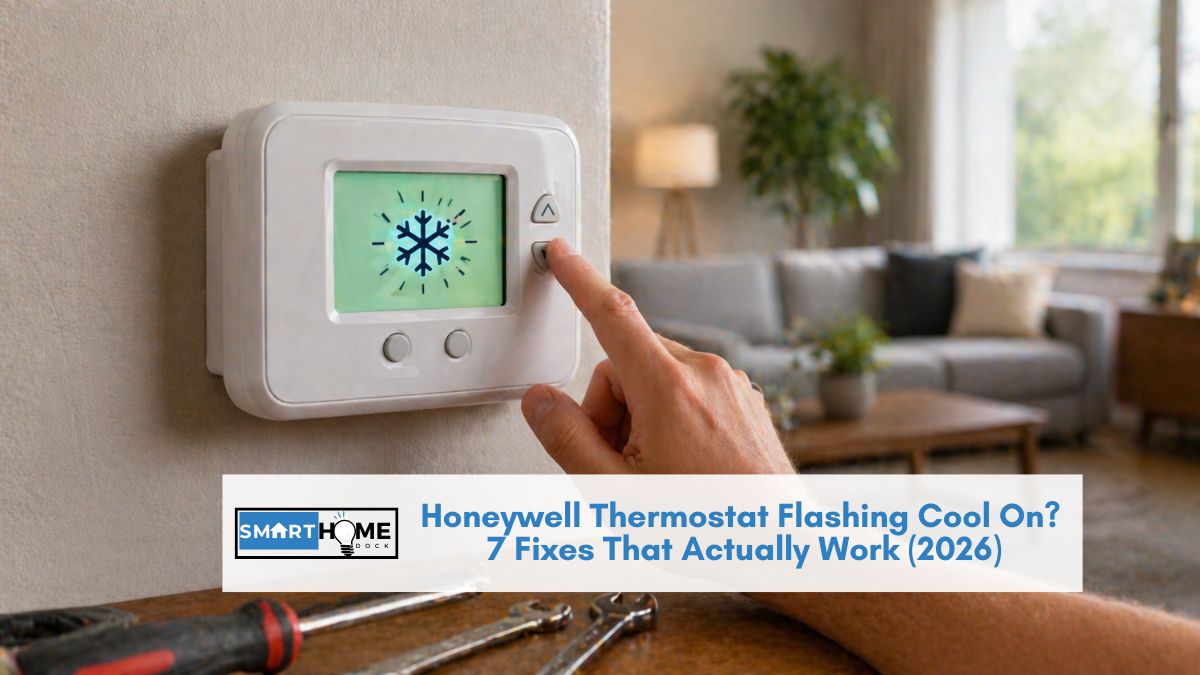
It’s 95°F outside, you set the AC to 72, and your Honeywell thermostat is just sitting there with “Cool On” blinking on the screen. No cold air.
No compressor noise outside. Just a blinking message and a house that’s getting hotter by the minute.
A Honeywell thermostat flashing Cool On is one of the most common and most misunderstood thermostat behaviours.
In most cases, it’s completely normal: a built-in 5-minute delay that protects your compressor from short cycling.
However, if the blinking lasts longer than 5 minutes or your AC never kicks in, you’re dealing with a real problem that needs troubleshooting.
Here are 7 fixes in order from simplest to most complex. Work through them in sequence — the first three resolve the issue 90% of the time.
Quick Answer: A Honeywell thermostat flashing Cool On means the thermostat has sent the cooling signal but the compressor hasn’t started yet. This is normal for up to 5 minutes it’s a built-in compressor protection delay. If the blinking continues beyond 5 minutes, try resetting the thermostat (pull it off the wall, remove batteries for 30 seconds, reinstall), check your circuit breaker, and inspect your air filter. If none of those work, you likely have a wiring or compressor issue that needs an HVAC technician.
Why Is Your Honeywell Thermostat Flashing “Cool On”?
Every Honeywell thermostat includes a compressor protection timer (also called a minimum off timer).
When your cooling system shuts off, whether from reaching the target temperature, a power outage, or you manually switching modes, the thermostat prevents the compressor from restarting for approximately 5 minutes.
This delay prevents short cycling, which can damage your compressor and shorten the lifespan of your HVAC system.
During this delay, the thermostat displays “Cool On” in a blinking or flashing state.
Different Honeywell models display this differently: some flash the text, some show a snowflake icon, and some display “Wait” or “Waiting for Equipment.”
All mean the same thing: the thermostat is telling you it’s received the cooling command but is waiting for the safety delay to complete.
If the blinking stops within 5 minutes and cold air starts flowing, everything is working correctly. No fix needed. The thermostat did its job.
If the flashing continues beyond 5 minutes, work through these fixes:
Fix 1: Wait the Full 5 Minutes (Don’t Touch Anything)
This sounds obvious, but most people see the blinking, panic, and start pressing buttons, which resets the timer and extends the delay.
Set a timer on your phone for 5 minutes and walk away from the thermostat. Don’t change the temperature, don’t switch modes, don’t power cycle anything.
If you’ve recently adjusted the thermostat, changed the batteries, or experienced a power flicker, the delay is almost certainly the normal compressor protection timer doing its job.
Fix 2: Reset the Thermostat
If “Cool On” is still flashing after 5 minutes, a simple reset clears most software glitches. The method depends on your model:
Battery-powered Honeywell thermostats (T4, T6, TH series): Pull the thermostat off its wall plate, remove the batteries, wait 30 seconds, reinstall the batteries, and snap the thermostat back onto the plate. Wait 5 minutes for the compressor delay to complete.
Hardwired Honeywell thermostats (T9, T10, Wi-Fi models): Go to your circuit breaker panel and flip the HVAC breaker to OFF. Wait 30 seconds, then flip it back to ON. Return to the thermostat and wait 5 minutes.
For detailed reset instructions for every Honeywell model, see our complete Honeywell thermostat reset guide.
Fix 3: Check the Circuit Breaker
Your thermostat can send the cooling signal all day, but if the circuit breaker for your outdoor AC unit is tripped, the compressor will never start.
Go to your electrical panel and find the breaker labelled “AC,” “Condenser,” or “Outside Unit.”
If it’s tripped (in the middle position), flip it fully OFF, wait 10 seconds, then flip it back to ON. Return to the thermostat and wait 5 minutes for the compressor delay.
If the breaker keeps tripping, do not keep resetting it this indicates an electrical fault (possibly a failing compressor, capacitor, or short to ground). Call an HVAC technician.
Fix 4: Replace or Check the Air Filter
A severely clogged air filter restricts airflow, which can cause the evaporator coils to freeze, triggering a system shutdown, which causes the “Cool On” flashing cycle to repeat.
Pull out your air filter and inspect it. If you can’t see light through it, replace it immediately. After replacing the filter, reset the thermostat and wait 5 minutes.
If the coils have already frozen (check by opening the air handler if you see ice on the coils), turn the thermostat to FAN ONLY for 2–3 hours to let the ice melt completely before trying to cool again.
💡 Expert Tip:
A frozen evaporator coil is the sneakiest cause of the Honeywell thermostat flashing “Cool On” because the symptoms look intermittent. The system runs for 20 minutes, the coil ices up, the compressor shuts off, the thermostat blinks “Cool On” for 5 minutes, the ice partially melts, the compressor restarts, and the cycle repeats. You get cold air intermittently, but the house never reaches the target temperature. The fix is almost always a dirty filter or low refrigerant. Start with the filter (free) before calling a tech for a refrigerant check ($150–$300).
Fix 5: Inspect the Thermostat Wiring
Loose or corroded wires between the thermostat and the HVAC system can cause the “Cool On” signal to fail.
Turn off the power at the breaker, then carefully pull your thermostat off the wall plate.
Check that all wires are firmly inserted into their correct terminals. The key wires for cooling are:
- R (red) — 24V power
- Y (yellow) — compressor signal
- G (green) — fan signal
- C (blue, if present) — common wire for continuous power
If any wire looks loose, corroded, or is pushed in but not making contact, press it firmly into the terminal and secure it. Reattach the thermostat, restore power, and test cooling.
Fix 6: Check the Outdoor Unit
Walk outside and look at your AC condenser unit. The fan should be spinning and you should hear the compressor humming when the thermostat is calling for cooling. If the outdoor unit is completely silent:
- Check the disconnect switch (usually a grey box on the wall near the outdoor unit) — make sure it’s in the ON position
- Listen for a humming or clicking sound from the contactor relay — if you hear clicking but the compressor doesn’t start, the run capacitor may be failing
- Look for debris, leaves, or obstructions around the unit that could be blocking airflow
If the outdoor fan spins but the compressor doesn’t hum, or if you hear buzzing/clicking without the unit starting, you likely have a failing capacitor or compressor, both of which require an HVAC technician.
Fix 7: Call an HVAC Technician
If you’ve worked through fixes 1–6 and your Honeywell thermostat is still flashing “Cool On” without the AC producing cold air, the problem is beyond DIY troubleshooting.
Common professional-level causes include:
- Low refrigerant — caused by a leak in the refrigerant lines. The system tries to cool but can’t reach temperature, triggering repeated shutdown/restart cycles
- Failed run capacitor — the capacitor provides the initial power surge to start the compressor motor. When it fails, the compressor hums or clicks but doesn’t start
- Compressor failure — the most expensive repair. Signs include the outdoor unit making grinding or banging noises, warm air from vents despite the system running, or the breaker tripping repeatedly
- Control board issues — a faulty control board in the air handler can prevent the cooling signal from reaching the compressor
Frequently Asked Questions
How long should a Honeywell thermostat flash Cool On?
A Honeywell thermostat flashing Cool On should stop within 5 minutes under normal conditions.
This delay is a built-in compressor protection feature that prevents short cycling.
If the blinking lasts longer than 5 minutes or repeats every few minutes, something is preventing the compressor from starting.
Use the troubleshooting steps above.
Can I override the “Cool On” delay on a Honeywell thermostat?
No, the compressor protection delay cannot be overridden or disabled on Honeywell thermostats.
It’s a safety feature designed to prevent compressor damage.
Attempting to bypass it (such as jumping wires at the thermostat) can damage your HVAC equipment and void your warranty.
Why does my Honeywell thermostat say Cool On, but no air is coming out?
If “Cool On” is displayed (not blinking) but no air comes from the vents, the most likely cause is a blown fuse on the air handler control board, a failed blower motor, or a tripped safety switch (like a clogged condensate drain float switch).
Check that the air handler’s power switch is on and the furnace door is fully closed.
Many systems won’t run if the door isn’t properly latched.
Does “Cool On” blinking mean my compressor is bad?
Not necessarily. The blinking simply means the thermostat is in compressor protection delay mode.
A bad compressor is only one of many possible causes if the blinking persists beyond 5 minutes.
Tripped breakers, dirty filters, frozen coils, and loose wiring are all more common causes than compressor failure.
Work through the troubleshooting steps before assuming the worst.
Should I reset my Honeywell thermostat when it flashes “Cool On”?
Wait 5 minutes first; the flashing is usually a normal delay. If it persists beyond 5 minutes, a reset is a good next step.
Remove the batteries (or flip the HVAC breaker) for 30 seconds, then restore power.
For full reset instructions for every Honeywell model, see our Honeywell thermostat reset guide.
