








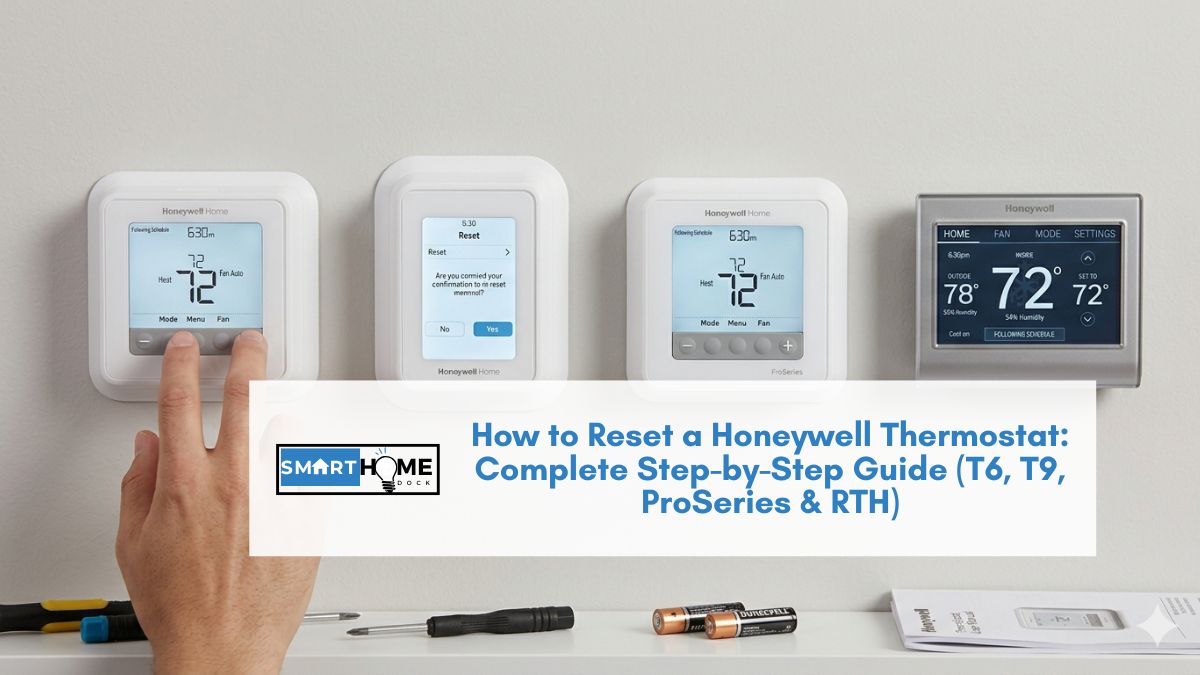
How to reset a Honeywell thermostat is the question keeping you here at this hour, probably because your screen just went blank or the heating stopped responding.
Before you call an HVAC technician, do one thing first. A proper reset takes five minutes and saves a $150 service call. Nine times out of ten, that single step resolves the problem entirely.
I’ve reset more Honeywell thermostats than I care to count, including two in my own home after a power surge wiped out the scheduling.
When people search for how to reset a Honeywell thermostat, the trickiest part is always the same: the steps differ depending on which model you own.
Consequently, a generic guide that skips model identification sends most people in the wrong direction. This guide solves that first, you’ll identify your model, then you’ll get the exact steps for it. No guesswork.
⚡ Quick Answer The fastest way to learn how to reset a Honeywell thermostat across all models is to identify your model number first (printed on the back of the unit or inside the battery cover).
For smart touchscreen models like the T9, tap Menu → Advanced Setup → Reset → Factory Reset.
For the T6 Pro, hold the up and down arrows together for 5 seconds to access installer settings, then navigate to Factory Reset.
For older battery-powered RTH models, flip the batteries backward for 10 seconds, then reinsert them correctly.
What You’ll Need Before You Reset a Honeywell Thermostat
Gathering these items before you begin prevents interruptions halfway through the process. Here is everything you need when you reset a Honeywell thermostat — regardless of model:
- Your model number (see section below on how to find it)
- Your Wi-Fi network name and password (for smart models only)
- A pen and paper to note your current schedule settings before wiping them
- Fresh AA or AAA batteries if your unit is battery-powered
- The Honeywell Home app on your phone, installed and logged in (T9, T10, and Lyric models)
Importantly, write down your heating and cooling schedule before you reset. A factory reset on a Honeywell thermostat clears every setting you’ve ever programmed. Spending two minutes doing this beforehand saves twenty minutes reprogramming from scratch.
How to Find Your Honeywell Model Number
This step matters more than most guides admit. Knowing how to reset a Honeywell thermostat correctly starts here — applying the wrong process either does nothing or locks the device entirely.
Here are three places to check, in order of ease:
- Inside the battery compartment — Flip open the battery door on the right side of the unit. Most models print the model number on a sticker inside this cover.
- On the back of the wall plate — Gently pull the thermostat body off the wall plate (most units pull straight forward with even pressure, no tools required). The model number appears on the back label.
- Original packaging or ID card — Honeywell ships every unit with an ID card that lists the model. Check your appliance drawer if you kept it.

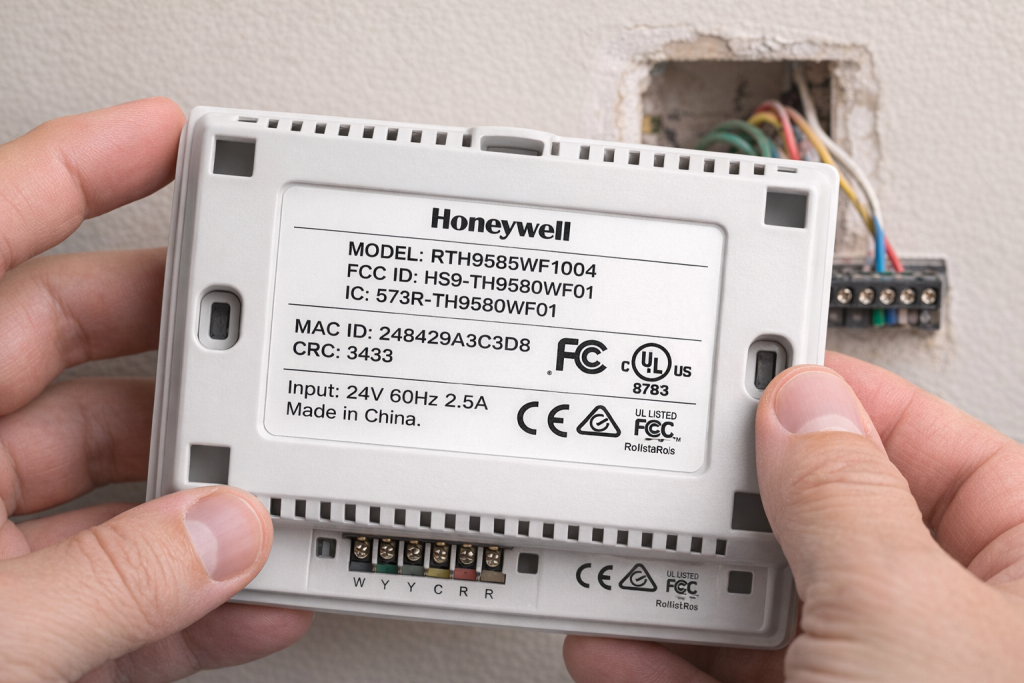
Once you have the model number, use the table below to jump straight to your section.
| Model Series | Examples | Reset Type |
|---|---|---|
| T6 Pro / T6 Z-Wave | TH6320WF, TH6220WF | Installer menu reset |
| T9 / T10 | RCHT9610WF, T10 Pro | Touchscreen menu reset |
| ProSeries (VisionPRO 8000) | TH8321, TH8320 | System button + blank key |
| RTH series (programmable) | RTH6580WF, RTH9585WF | Battery flip or menu reset |
| Non-programmable (older) | RTH111B, CT410B | Battery flip / reset button |
The Three Types of Honeywell Thermostat Resets and When to Use Each
- Schedule Reset — Clears your programmed temperature timetable only. Use this when your heating or cooling schedule acts erratically, but everything else works fine. Your Wi-Fi connection and installer settings stay intact.
- Wi-Fi Reset — Drops the saved network connection so you can reconnect to a new router or fix a dropped signal. This leaves your schedule and all other settings untouched. Use it whenever you change your Wi-Fi router or password.
- Factory Reset — Wipes every setting on the Honeywell thermostat: schedule, Wi-Fi credentials, installer configuration, and user preferences. Reserve this for persistent glitches, selling your home, or replacing your HVAC system.
⚠️ Important: Before you reset, a factory reset removes everything. Furthermore, smart models like the T9 forget all paired room sensors after a factory reset. You’ll need to re-pair them individually through the Honeywell Home app. Plan for 15–20 extra minutes if you use room sensors.
T6 Pro How to Reset the Honeywell T6 Pro Thermostat
The T6 Pro targets professional installation, but homeowners need to reset a Honeywell T6 Pro thermostat frequently, particularly after switching HVAC systems or moving into a new property.
Because Honeywell built this model for contractors, the factory reset hides inside the installer settings menu rather than the regular interface.
How to Factory Reset a Honeywell T6 Pro Thermostat
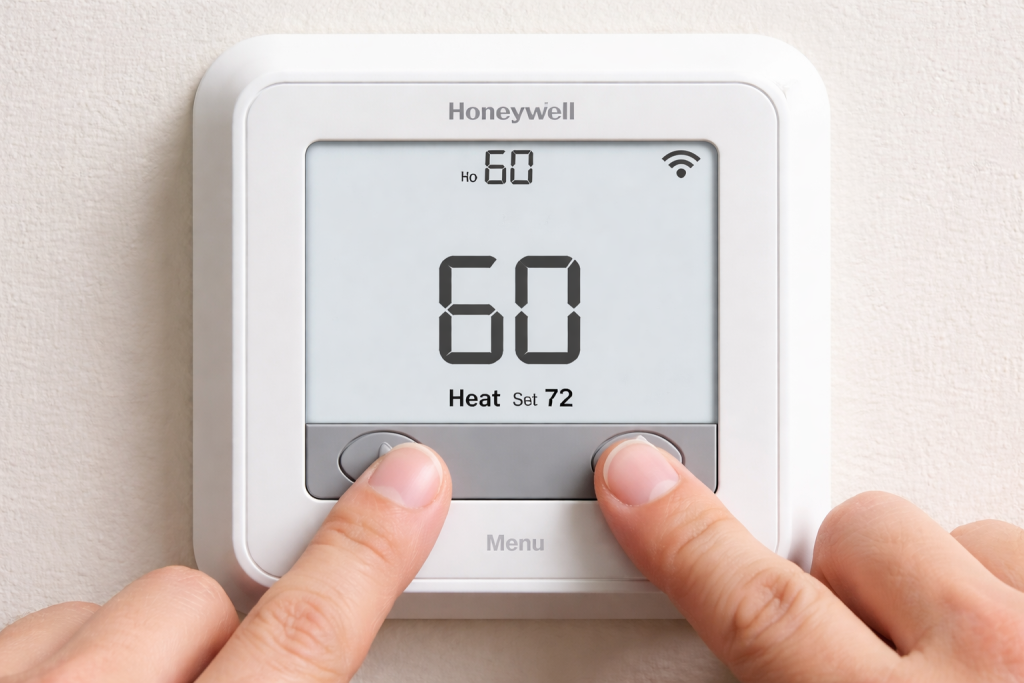
- Make sure the thermostat displays a temperature reading (it must be in normal operating mode, not off).
- Press and hold the up arrow (▲) and down arrow (▼) simultaneously for approximately 5 seconds until the screen changes.
- You’re now in the installer settings menu. Use the arrow buttons to scroll until you see Factory Reset or Default Settings (the exact wording varies slightly by firmware version).
- Press the center button to select it, then confirm when the prompt appears.
- The thermostat restarts automatically and runs through a brief setup wizard. Follow the on-screen prompts to select your system type and preferences.
Wi-Fi Reset — T6 Pro
A Wi-Fi reset lets you reset a Honeywell T6 Pro thermostat’s network connection without touching your schedule or installer settings.
- From the main screen, press the Menu button.
- Scroll to Wi-Fi Setup and select it.
- Choose Change Network or Reset Wi-Fi.
- Follow the on-screen steps to reconnect to your network.
T9 How to Reset the Honeywell T9 Smart Thermostat
The Honeywell T9 is the brand’s flagship smart model. It supports room sensors, geofencing, and full app control through the Resideo platform.
As a result, learning how to reset a Honeywell thermostat in the T9 range requires a few extra steps compared to older models. Specifically, you need the date code printed on the unit to confirm the reset.
Finding Your T9 Date Code
Before starting a factory reset on this model, locate the 4-digit date code. Pull the T9 off its wall plate and check the label on the back.
The date code appears in a small box near the model number. Note it down, because the thermostat uses this code as a security confirmation during the reset process.
How to Factory Reset a Honeywell T9 Thermostat

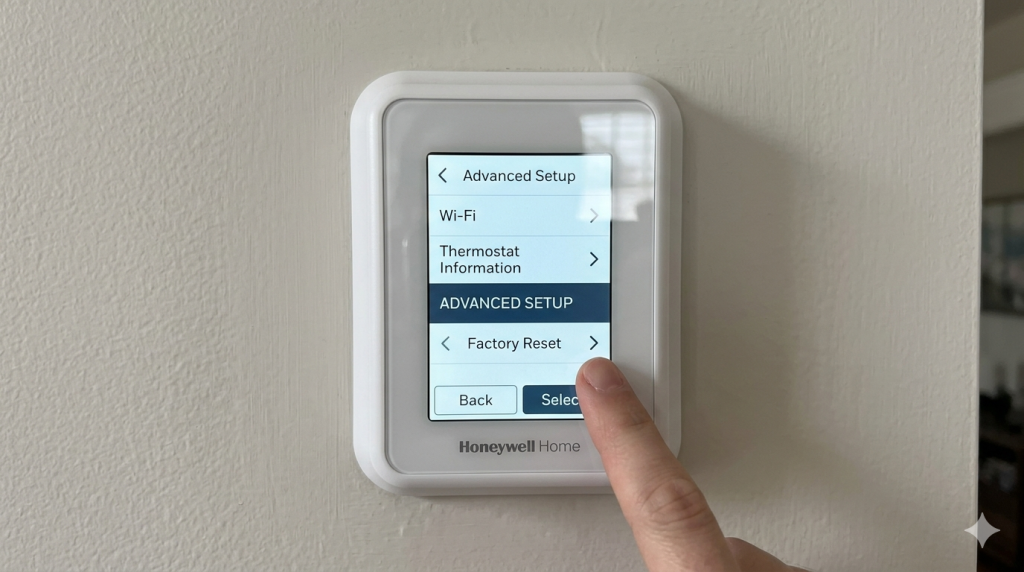
- Tap the Menu icon on the touchscreen (the three horizontal lines at the top of the display).
- Scroll down and select Advanced Setup.
- Tap Reset.
- When prompted for a password, enter your 4-digit date code.
- Select Factory Reset and confirm the action.
- The T9 restarts and returns to its out-of-box state. Open the Honeywell Home app to reconnect and re-pair any room sensors.
Wi-Fi Reset — T9
- Tap Menu → Wi-Fi on the touchscreen.
- Select Change Network.
- Choose your new network from the list and enter the password.
- The thermostat reconnects without wiping any schedules or settings.
ProSeries How to Reset the Honeywell VisionPRO 8000 (ProSeries)
The VisionPRO 8000, also labeled TH8321 or TH8320, appears in many homes built between 2010 and 2018.
When you need to reset a Honeywell thermostat in the ProSeries range, specifically the VisionPRO 8000, the process differs noticeably from the budget T-series lineup because Honeywell uses a hidden installer key rather than an on-screen menu option.
How to Factory Reset the Honeywell VisionPRO 8000
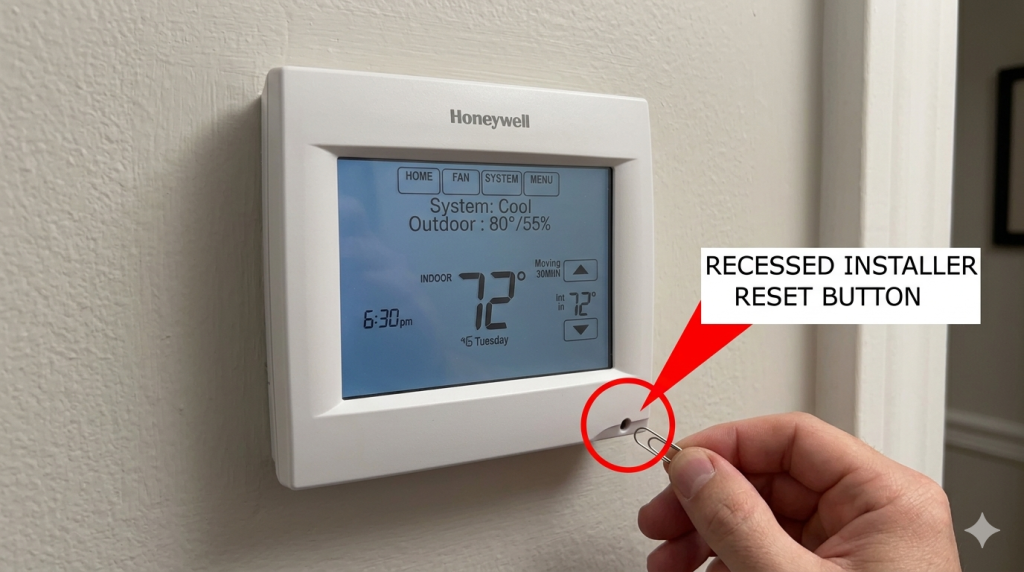
- Turn on the thermostat if it isn’t already on.
- Press the System button on the main screen.
- Locate the blank, unmarked button in the lower-right corner of the display — this is a hidden installer key. Press and hold it for approximately 5 seconds.
- The screen transitions to the reset options menu. Use the arrow buttons to navigate to Factory Reset.
- Select Factory Reset and follow the on-screen confirmation prompt.
- The thermostat reboots and returns to factory defaults. Reprogram your schedule and system preferences from the setup wizard.
RTH Series How to Reset Honeywell RTH Programmable Thermostats
The RTH lineup covers a wide range of programmable models, from the budget RTH111B to the Wi-Fi-capable RTH9585WF.
To reset a Honeywell RTH thermostat correctly, check your specific model label first; different RTH variants use different mechanisms, and applying the wrong one wastes time.
How to Reset a Honeywell RTH Thermostat — Battery Flip Method
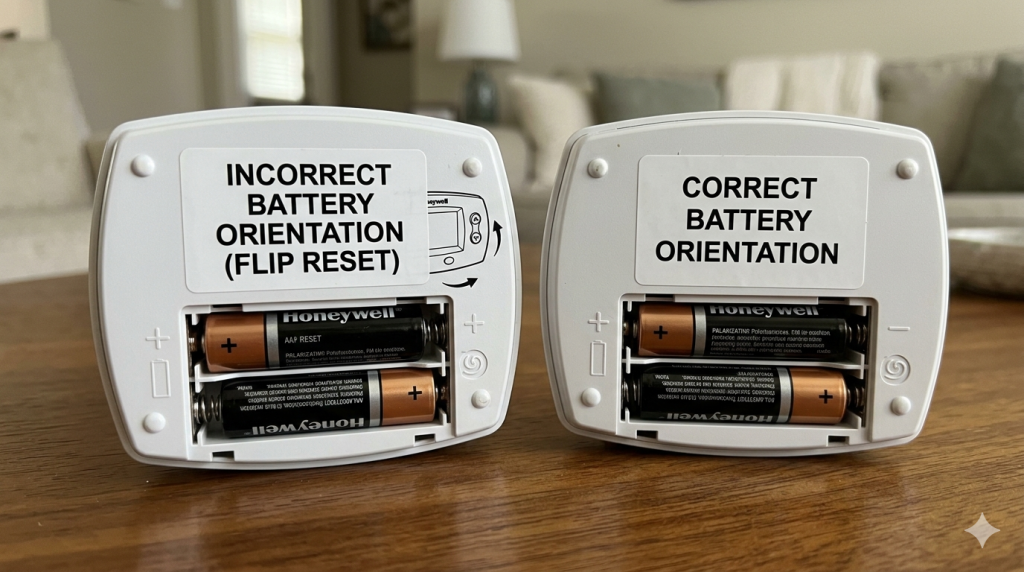
This method works for RTH models that run on batteries and don’t have a Wi-Fi connection. It’s the fastest reset on any Honeywell thermostat.
- Turn the thermostat off using the mode selector or power button.
- Open the battery compartment and remove the batteries.
- Reinsert the batteries in reverse polarity positive where negative should go, and vice versa.
- Wait exactly 10 seconds, then remove the batteries again.
- Reinsert the batteries in the correct orientation.
- The thermostat resets to factory defaults and powers back on automatically.
Menu Reset — RTH9585WF and Other Wi-Fi RTH Models
Use this method when you need to reset a Honeywell RTH thermostat that connects to Wi-Fi. The battery flip won’t clear network settings on these models.
- Press and hold the Menu button on the thermostat display.
- Press the right arrow button until Reset appears on screen.
- Press Select to confirm.
- Use the right arrow to navigate to Factory Reset, then confirm again.
- The thermostat clears all settings and restarts. Reconnect to Wi-Fi through the Honeywell Home app.
Older Models: How to Reset Older Non-Programmable Honeywell Thermostats
Knowing how to reset a Honeywell thermostat on older non-programmable units think CT410B, RTH111B, or anything without a digital display is different from smart units.
In fact, many of these models lack a software reset option entirely, so the battery method or physical reset button are your only two choices.
Physical Reset Button Method
- Cut power to the thermostat by switching off the circuit breaker for your HVAC system.
- Locate the small reset button — it sits near the display or behind a small cover panel, depending on the model.
- Press and hold the reset button with a pin or straightened paperclip for 5 to 10 seconds while the power is still off.
- Restore power at the breaker.
- The thermostat powers on with default factory settings.
No Reset Button? Use the Menu
If your non-programmable model has a Menu button but no physical reset pin, press and hold Menu for 5 seconds.
Navigate through the options using the arrow keys until you find a Reset or Restore Defaults option, then confirm.
💡 Expert Tip — “Cool On” Flashing After a Reset
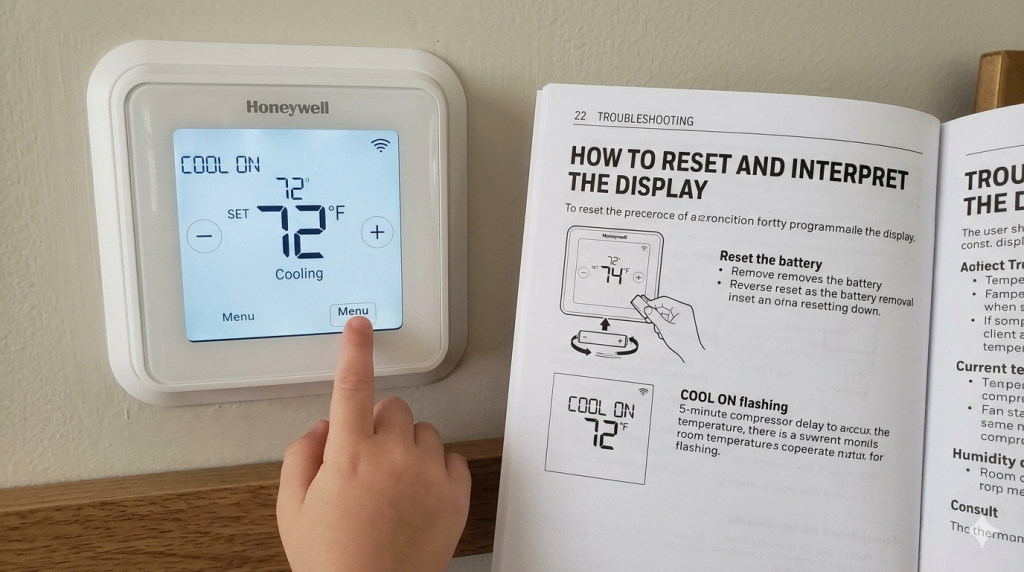
After you reset a Honeywell thermostat and set it to cooling mode, you’ll often see the words “Cool On” flashing on the display for 3 to 5 minutes before the AC actually kicks in.
Many people assume the reset failed and immediately try again. Doesn’t the flashing “Cool On” message indicate a built-in compressor protection delay, not an error?
Honeywell programs this pause deliberately to prevent short cycling, which can damage your AC compressor. Simply wait 5 minutes after a reset before concluding that something went wrong.
What to Do After You Reset Your Honeywell Thermostat
Once you successfully reset a Honeywell thermostat, the unit returns to a blank factory slate.
However, getting it back to full functionality requires five deliberate steps; skipping any of these leaves the thermostat running on defaults that won’t match your home’s needs.
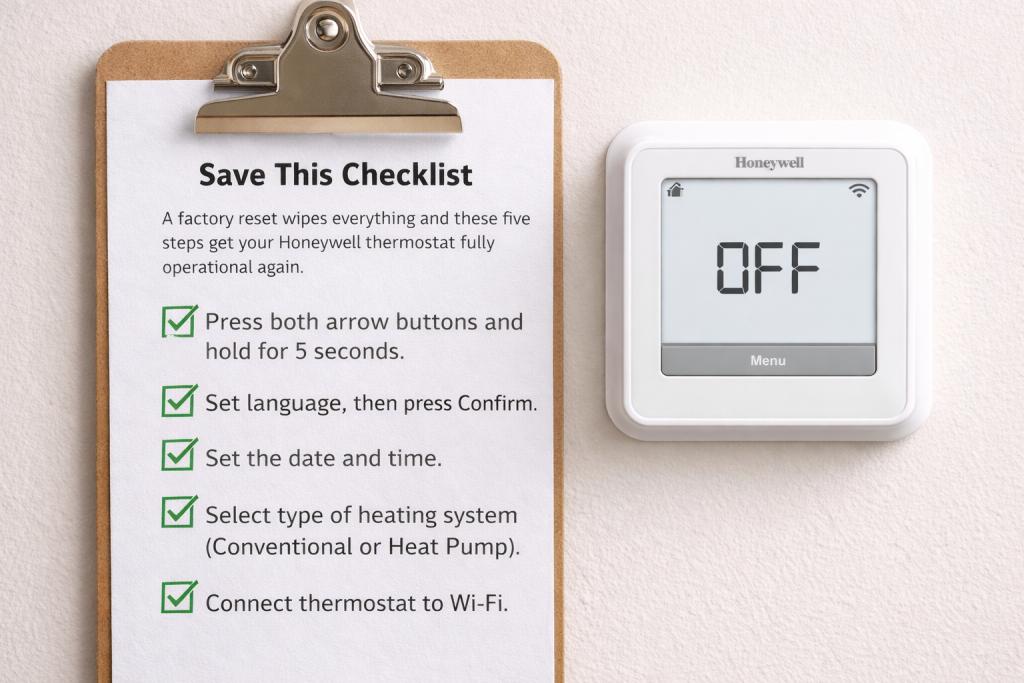
- Reconnect to Wi-Fi (smart models). Go to Menu → Wi-Fi Setup and select your network. Use the 2.4GHz band rather than 5GHz — Honeywell smart thermostats don’t support 5GHz connections.
- Rebuild your heating and cooling schedule. Enter your preferred temperatures for each time slot. Alternatively, use the Honeywell Home app to push a schedule directly to the thermostat from your phone.
- Re-pair room sensors (T9 and T10 only). Open the Honeywell Home app, tap your thermostat, select Room Sensors, and follow the pairing steps for each sensor.
- Test the system. After you reset a Honeywell thermostat, set it 3°F above the current room temperature (for heating) or 3°F below (for cooling) and wait 5 minutes to confirm your HVAC responds.
When Resetting Your Honeywell Thermostat Doesn’t Fix the Problem
For additional verified reset procedures, Honeywell Home’s official reset support page lists every current model.
For general HVAC thermostat wiring guidance, the U.S. Department of Energy’s thermostat guide covers compatibility and C-wire requirements.
If your unit needs professional attention, the ACHR News HVAC contractor directory locates certified technicians by zip code.
Most thermostat glitches resolve once you know how to reset a Honeywell thermostat correctly for your specific model. Each series has its own method.
Nevertheless, some issues go deeper than software and need a completely different approach. Here are the signs that tell you to stop resetting and look elsewhere:
- The screen stays blank after resetting and fresh batteries. This typically points to a wiring issue — specifically a lost connection at the C-wire terminal. Check that all wiring connections are seated firmly at the back of the wall plate.
- Wi-Fi won’t reconnect despite multiple resets. Confirm your router broadcasts on 2.4GHz and that you’re not connecting to a guest network with device isolation enabled. Also, verify that your home’s network isn’t blocking new device registrations through MAC address filtering.
- HVAC still doesn’t respond after a factory reset. The problem likely lives in the HVAC system itself a tripped breaker, a blown fuse in the air handler, or a failed contactor. At this point, a reset won’t help, and calling a technician is the right move.
- Thermostat resets correctly but shows wildly inaccurate temperature readings. The internal temperature sensor may have failed. Honeywell thermostats that consistently misread by more than 3°F after a factory reset usually need replacing.
Frequently Asked Questions: How to Reset a Honeywell Thermostat
How do I reset my Honeywell thermostat without a model number?
To reset a Honeywell thermostat when you cannot find the model, pull the thermostat body off the wall plate.
Most units detach by pulling straight forward, and check the label on the back. The model number appears near the top of that sticker.
Alternatively, check inside the battery compartment if the unit uses batteries. If neither location shows a model number, photograph your thermostat and search Honeywell’s support page using the visual product finder at honeywellhome.com.
Will resetting my Honeywell thermostat delete my schedule?
It depends on which reset type you choose. When you reset a Honeywell thermostat using the factory reset option, it wipes everything, including your full heating and cooling schedule.
A Wi-Fi reset, however, only clears the network credentials; your schedule stays intact.
A schedule reset clears the timetable but keeps your Wi-Fi connection and all other settings. Choose the least disruptive option that addresses your specific issue.
Why is my Honeywell thermostat showing “Cool On” flashing after a reset?
This is normal behaviour, not an error. Honeywell builds a 3–5 minute compressor delay into every model to protect your AC compressor from short cycling.
After you reset a Honeywell thermostat and switch it to cooling mode, “Cool On” flashes on the display during this protective pause.
Wait at least 5 minutes before concluding the reset didn’t work. If cooling still doesn’t start after 5 minutes, check that your circuit breaker for the AC unit hasn’t tripped.
How do I reset a Honeywell thermostat that’s locked and showing a padlock icon?
A locked Honeywell thermostat requires a passcode before allowing access to any settings, including the reset menu.
Try entering the default passcode 1234 first many installers leave this unchanged. If that doesn’t work, pull the thermostat off the wall plate and look for a 4-digit date code on the back label.
Use that date code as the unlock passcode. For models without a date code, contact Honeywell Home support at 1-855-733-5465 for a model-specific unlock code.
How often should I reset my Honeywell thermostat?
Knowing how to reset a Honeywell thermostat is useful, but it is a troubleshooting tool, not a routine maintenance task.
A healthy thermostat rarely needs resetting. If you find yourself resetting the same unit every few weeks, that pattern signals an underlying issue: unstable power, a loose wiring connection, or a failing unit.
Address the root cause rather than repeatedly resetting. For most homes, a single factory reset over the life of a thermostat is typical.


